
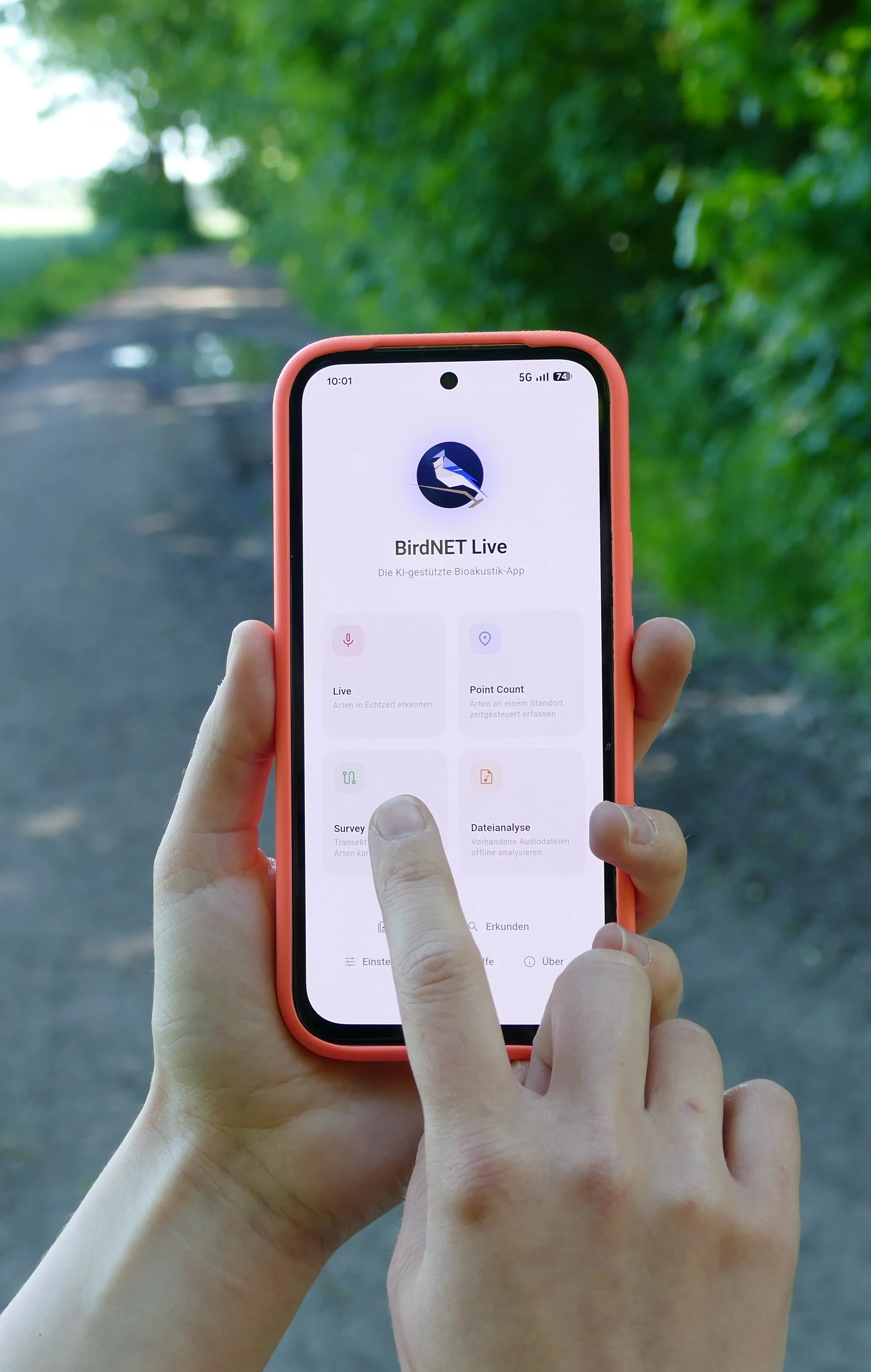
Capture bird calls along your route
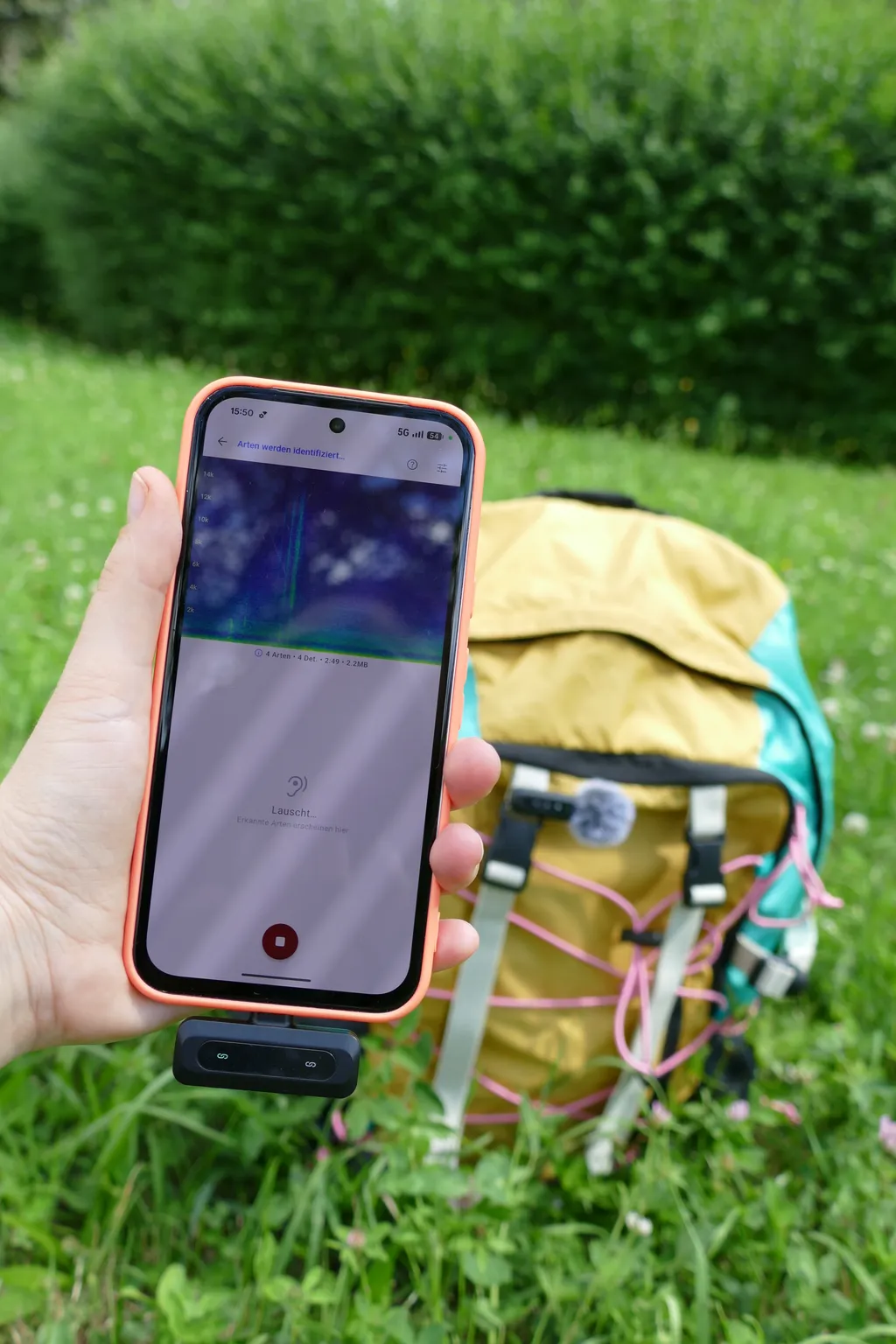
With survey mode you record bird calls while you’re on the move – for example on a walk or along a fixed route. The app tracks your path via GPS, recognizes species automatically, and assigns each detection to the place where you heard it. This creates a complete, spatially referenced record of your walk. At the end, you review everything conveniently in the Session Review.
Typical use cases
Survey Mode is especially suited for:
- walks and hikes with continuous recording
- surveys along fixed routes
- transect mapping
- surveys where the location of each detection matters
- citizen-science projects with a spatial reference

What is Survey Mode not suited for?
- exploring nature spontaneously
- capturing bird sounds at a fixed location over a set period of time
- using your phone as a recorder
How Survey Mode works
-
Open Survey Mode.
-
Complete the setup wizard.
- Enter the details. For the start location, it’s advisable to use the current GPS position.
- Set the parameters. See Settings for more information. The default settings are suitable for most applications.
- Configure species alerts. The app can alert you to certain species during the survey. For this feature, we recommend using headphones. That way the voice output is not picked up again by the microphone and does not affect the analysis. The announcements are especially helpful when you carry your smartphone in your pocket during a hike.
- Review the field tips.
- Check the configuration and start the survey.
-
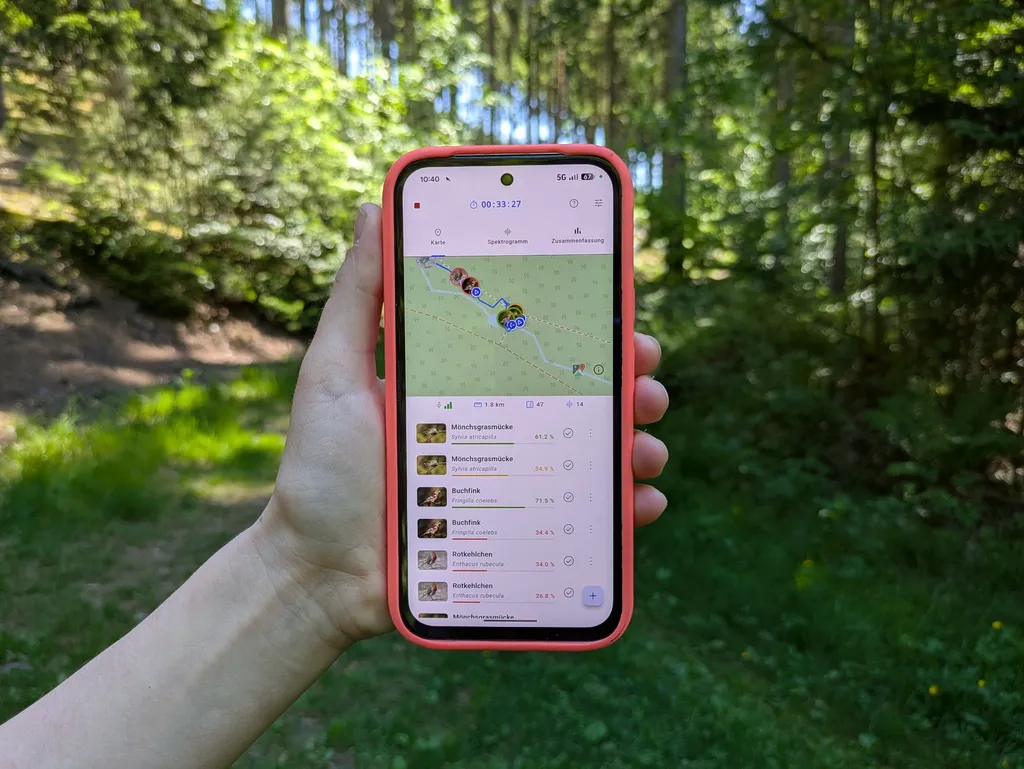
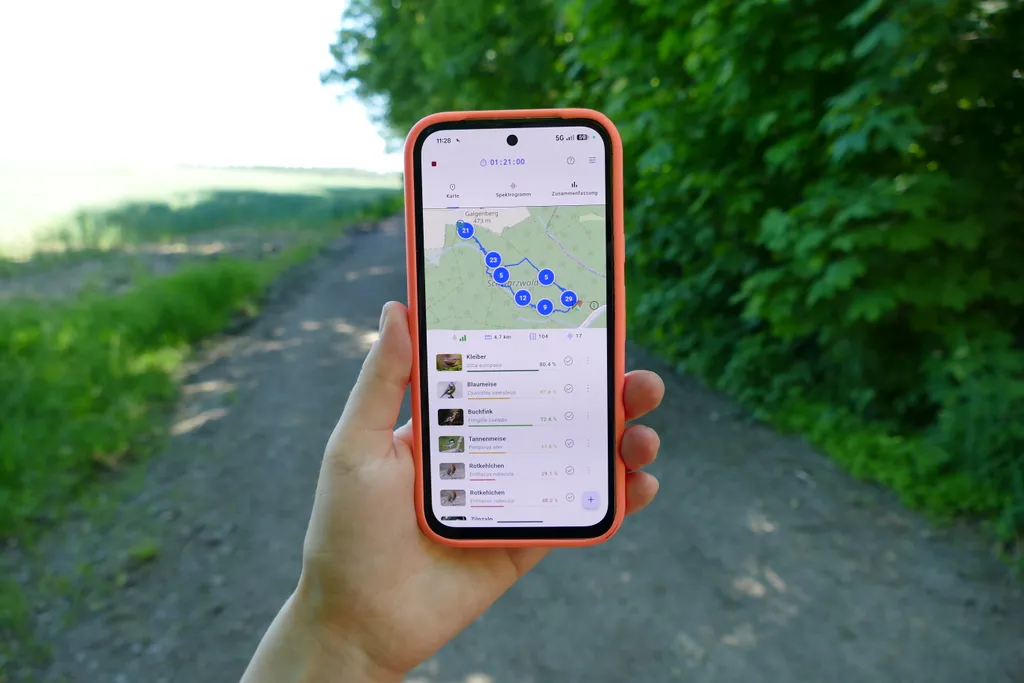
Monitor the live survey. During the survey, the dashboard shows:
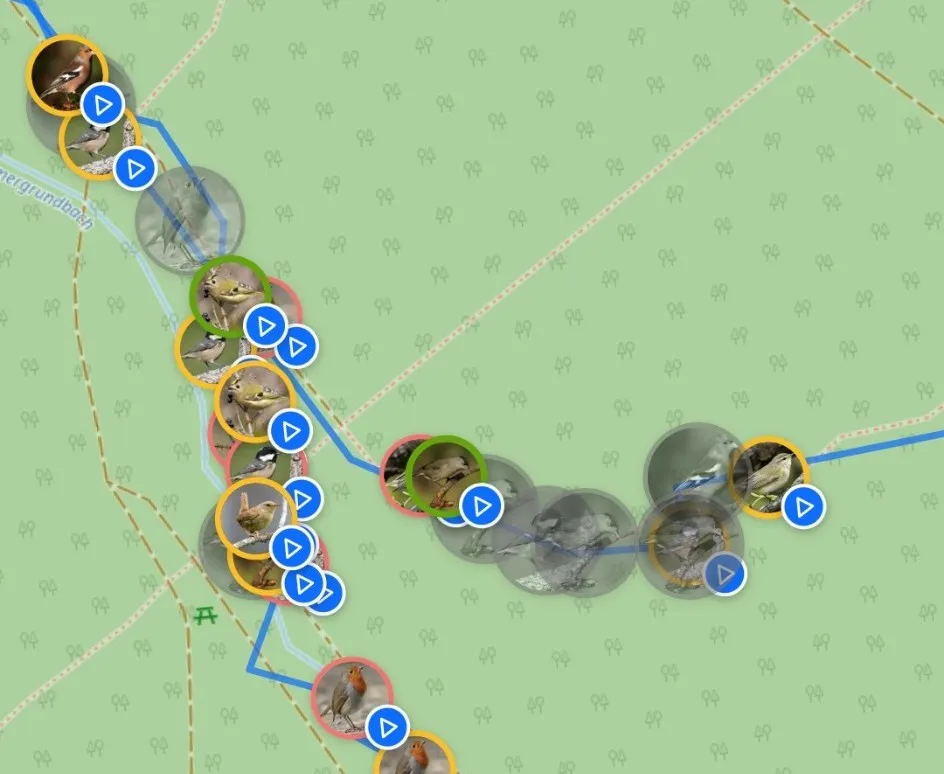
- a route map with detections
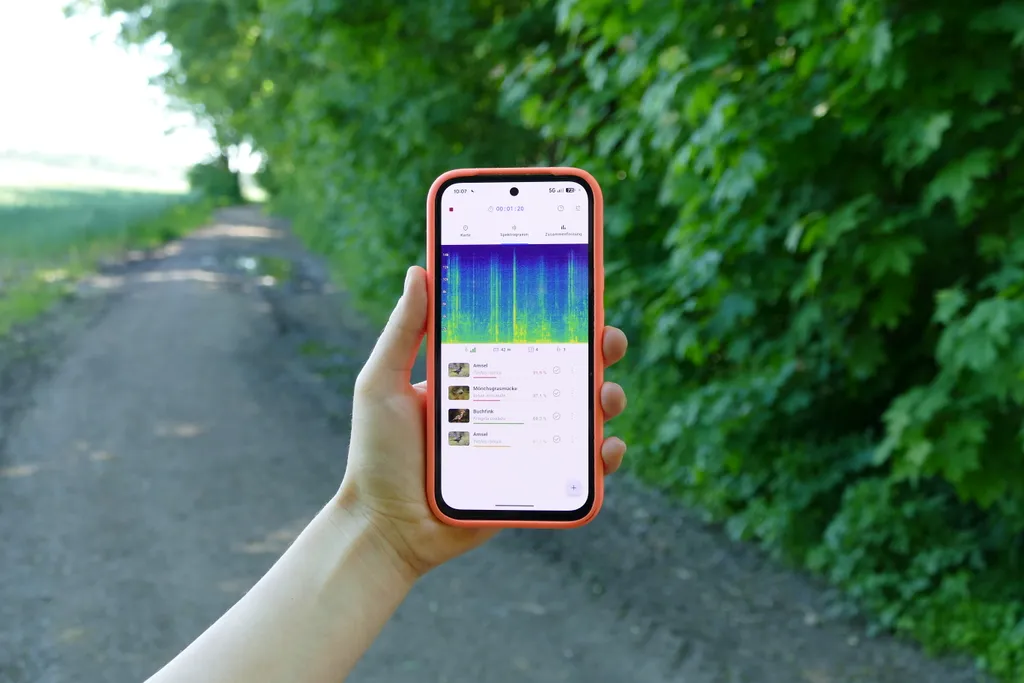
- an audio spectrogram
- an overview with a species breakdown
- a list of possible species in your area
-
Let the survey run in the background.
-
End the survey and evaluate it
In the live dashboard, tap the red button to end the survey. The app saves the finished survey. BirdNET Live then automatically opens the Session Review.
What does BirdNET Live show during the analysis?
Follow your route on the map
There you can see your current position, the route you’ve already covered, and where a bird call was detected.
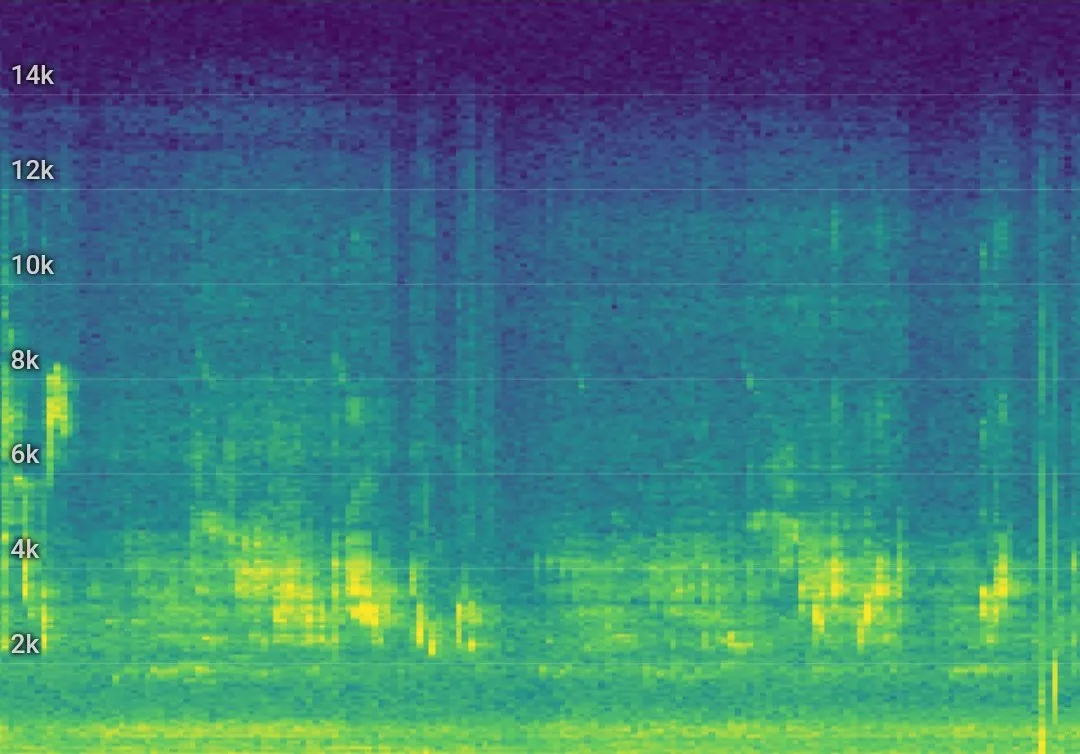
Live spectrogram
At the top of the app you’ll see a live spectrogram. It displays the recorded sounds graphically and makes bird calls and other sounds visible. This lets you follow when a sound was recorded and analyzed.
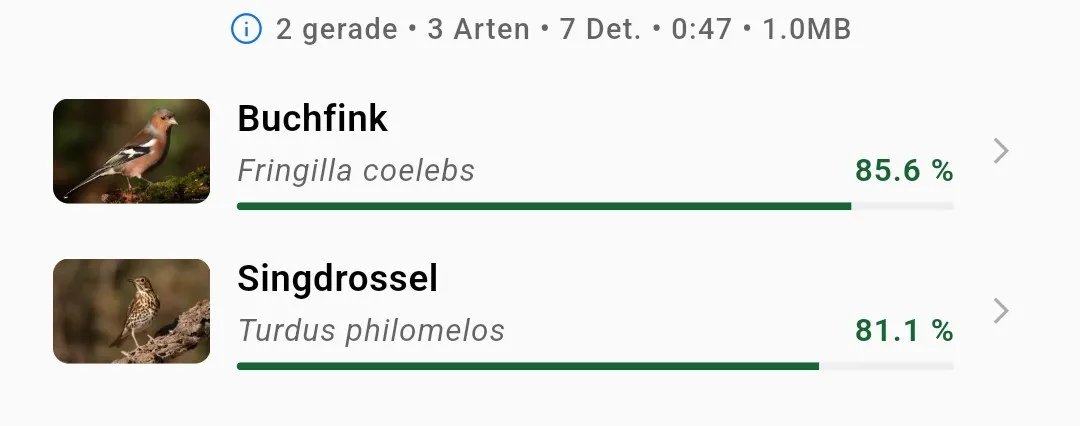
Detections in real time
Below the spectrogram, all species detected in the last few seconds appear. For each detection, the app shows, among other things, the common and scientific species name and the AI’s confidence score.
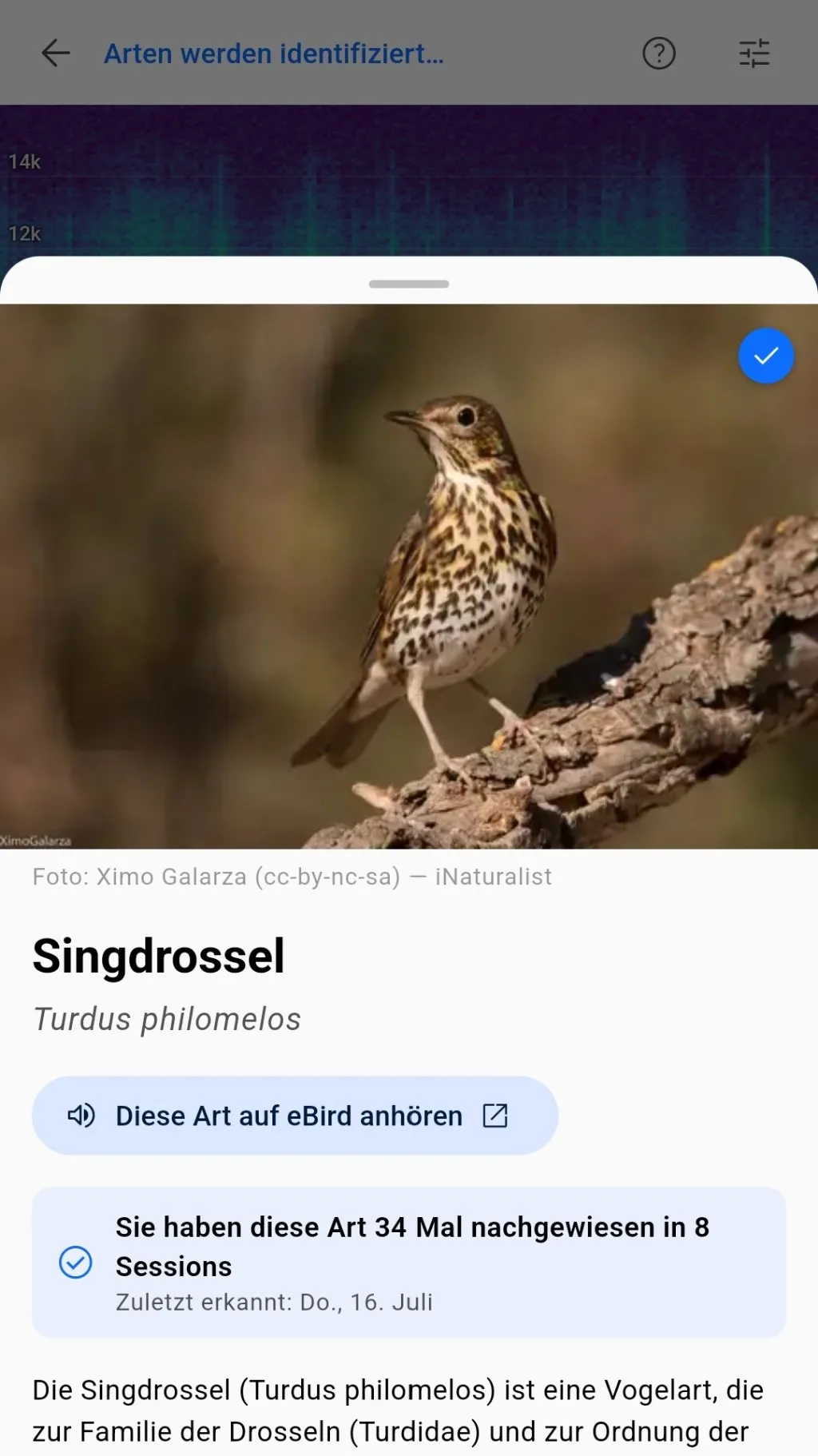
Species information
Tapping a detection gives you more information about the species. How often have you already recorded the species? How high is the expected frequency of the species at your location?
Evaluating the results
After you end the survey, BirdNET Live automatically opens the Session Review. There you can see your route with all located detections on the map, listen to individual detections, view spectrograms, and add metadata.
Later, you’ll find the survey at any time in Sessions, where you can export the results or share them with others.
Settings and tips
If you want to improve your recording quality, take a look at the settings and tips.
Settings and tips