
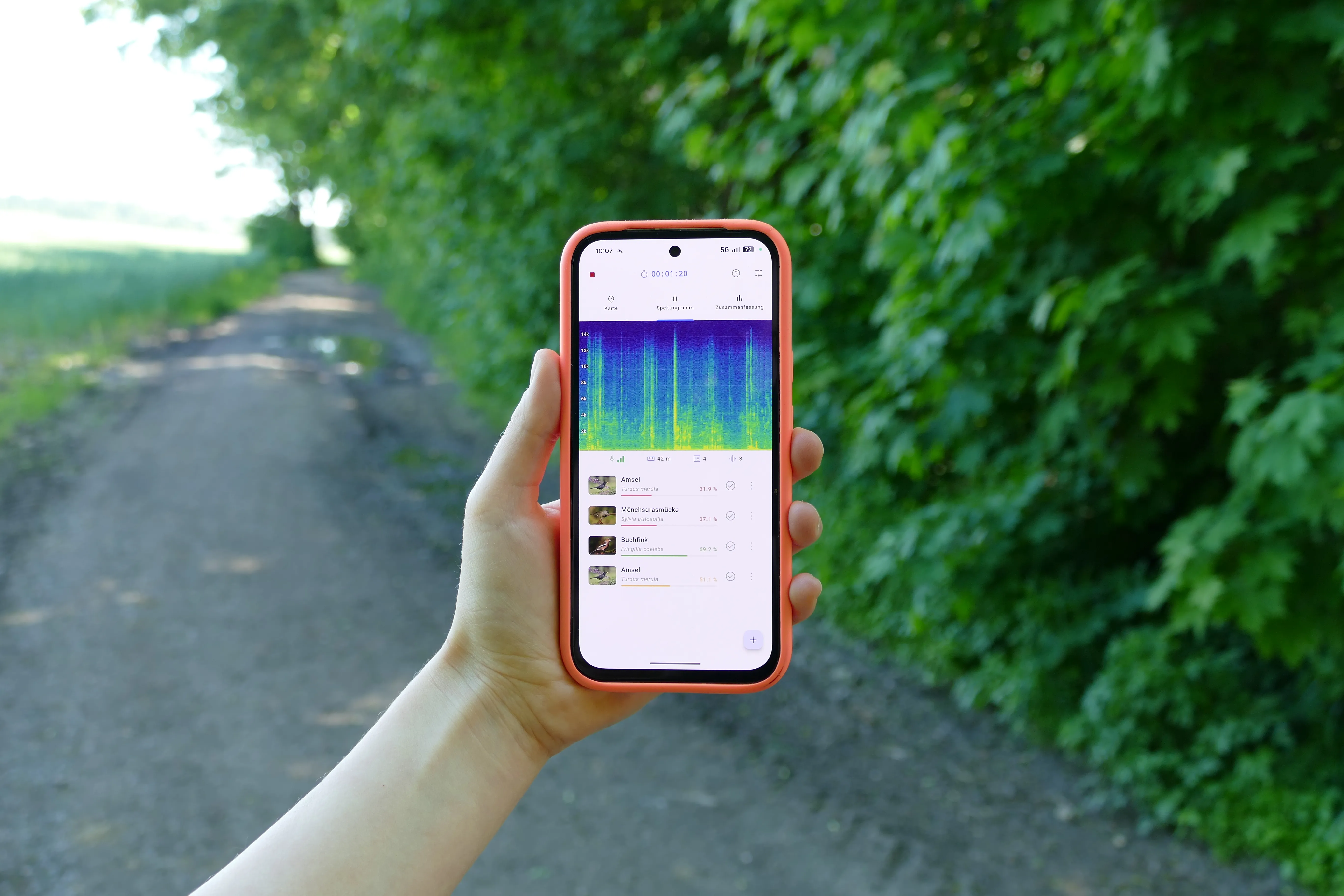
Live Mode is the fastest way to discover the wildlife around you. Start the mode and BirdNET Live immediately begins analyzing the ambient sounds through your smartphone’s microphone. When the AI recognizes a call or song, the corresponding animal species is shown in real time – without any internet connection.
Typical use cases
Live Mode is especially suited for:
- spontaneous birdwatching
- getting to know local bird sounds
- short listening sessions in the garden, in the park, or at the feeder
- environmental education and excursions without structured data collection
What is Live Mode not suited for?
- recording continuously during outings and hikes
- capturing bird sounds at a fixed location over a set period of time
- using your phone as a recorder
How Live Mode works
-
Select Live Mode in BirdNET Live.
-
If needed, check the analysis settings.
In most cases, the default settings can be kept. See Settings for more information.
-
Start the detection.
The app immediately begins analyzing the ambient sounds through the microphone.
-
Follow the detections in real time in the live spectrogram and the detection list.
-
End the session.
It is saved automatically and can then be evaluated.
What does BirdNET Live show during the analysis?
Live spectrogram
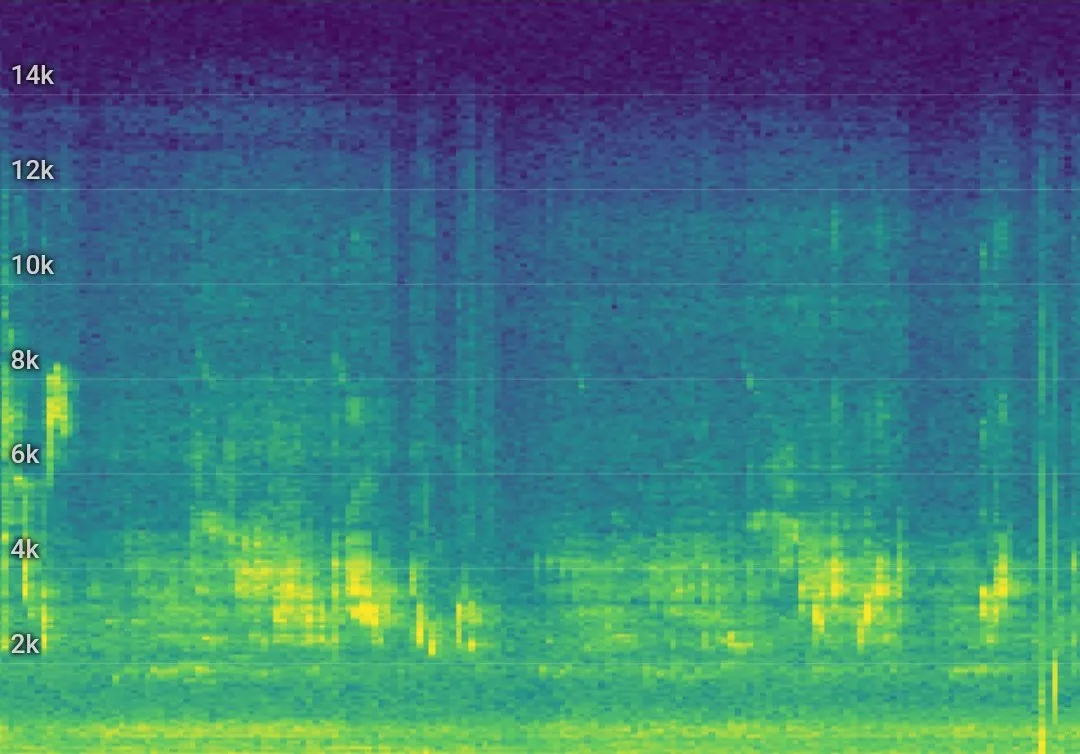
At the top of the app you’ll see a live spectrogram. It displays the recorded sounds graphically and makes bird calls and other sounds visible. This lets you follow when a sound was recorded and analyzed.
Detections in real time
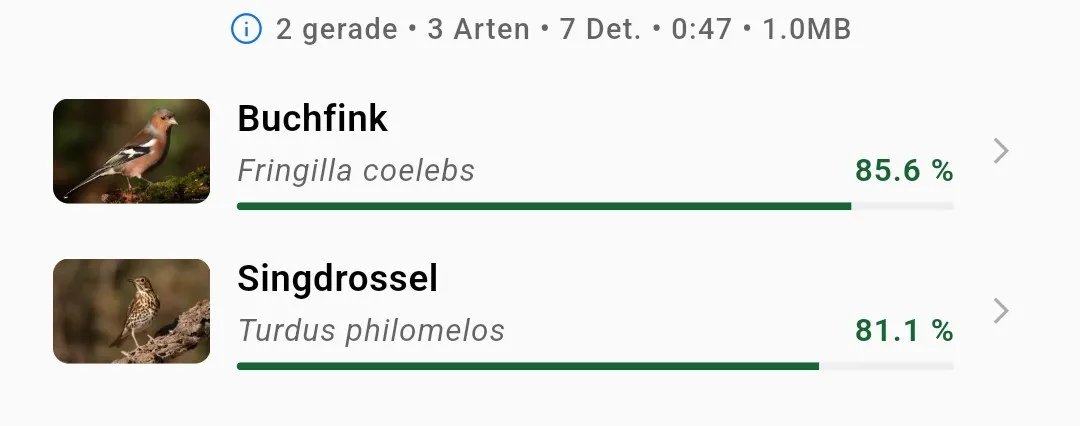
Below the spectrogram, all species detected in the last few seconds appear. For each detection, the app shows, among other things, the common and scientific species name and the AI’s confidence score.
Species information
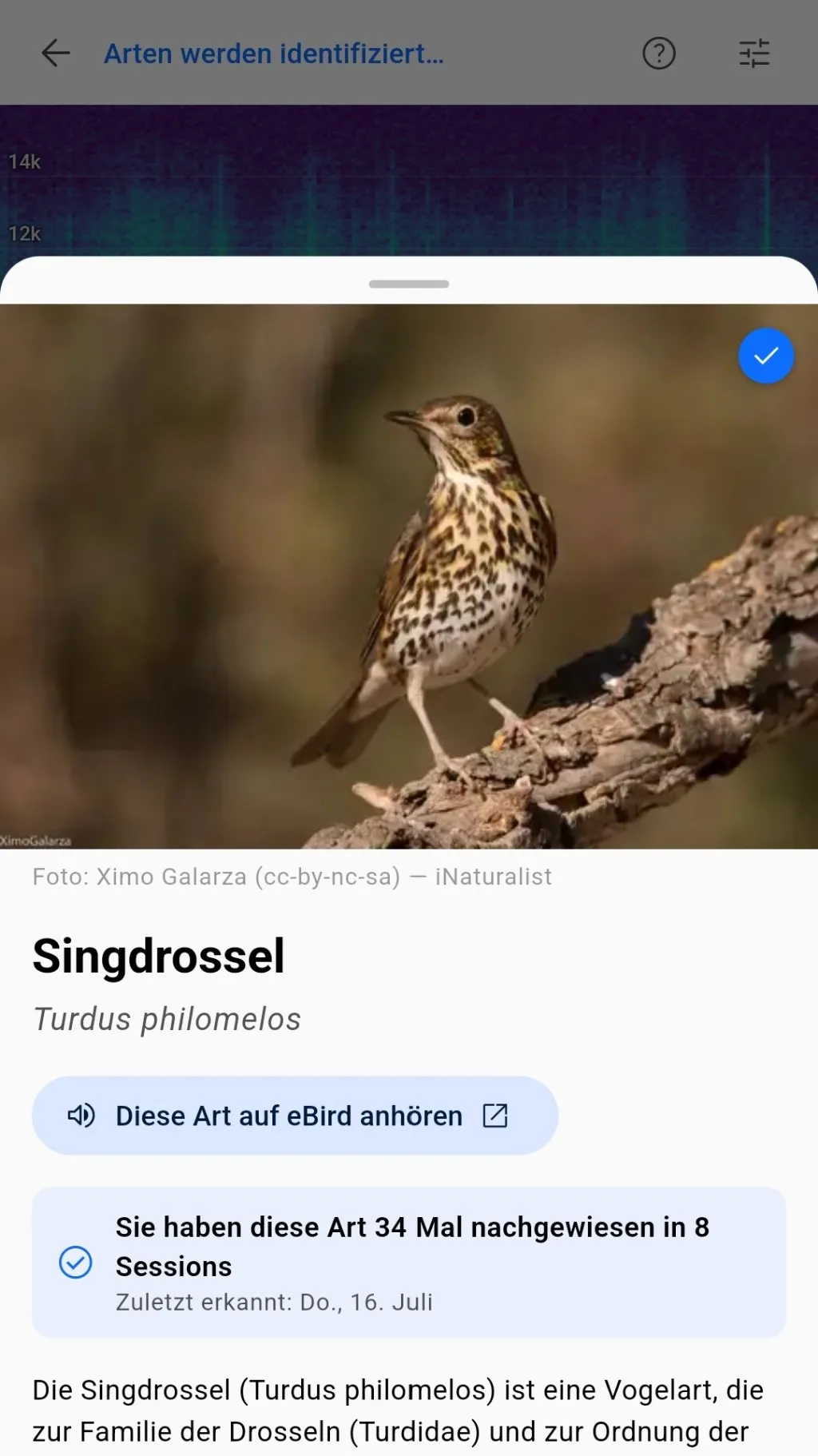
Tapping a detection gives you more information about the species. How often have you already recorded the species? How high is the expected frequency of the species at your location?
Evaluating the results
After finishing the session, you can view the results in the overview.
Listen to the recording again, take notes, share the results with others, or export the data in various formats.
Later, you can always view and manage all your recordings under Sessions.
Settings and tips
If you want to improve your recording quality, take a look at the settings and tips.
Settings and tips