Setting up your SD card
Have you checked off all the items on the checklist? Then take some time to set up your Raspberry Pi properly.
If you encounter any issues, do not hesitate to contact us via email.
Requirements
Section titled “Requirements”You need a computer, a suitable SD card for your Raspberry Pi, and an internet connection.
SD Card Setup
Section titled “SD Card Setup”Install Operating System
Section titled “Install Operating System”-
Connect the MicroSD card to your computer.
Make sure you know how the SD card is labeled on your computer. If there is still data on the SD card, you should back it up, as it will be lost during the installation. On Windows, you can check this via File Manager (Explorer) > This PC. -
Download and open Raspberry Pi Imager from raspberrypi.com/software/. Simply follow the installation instructions.
-
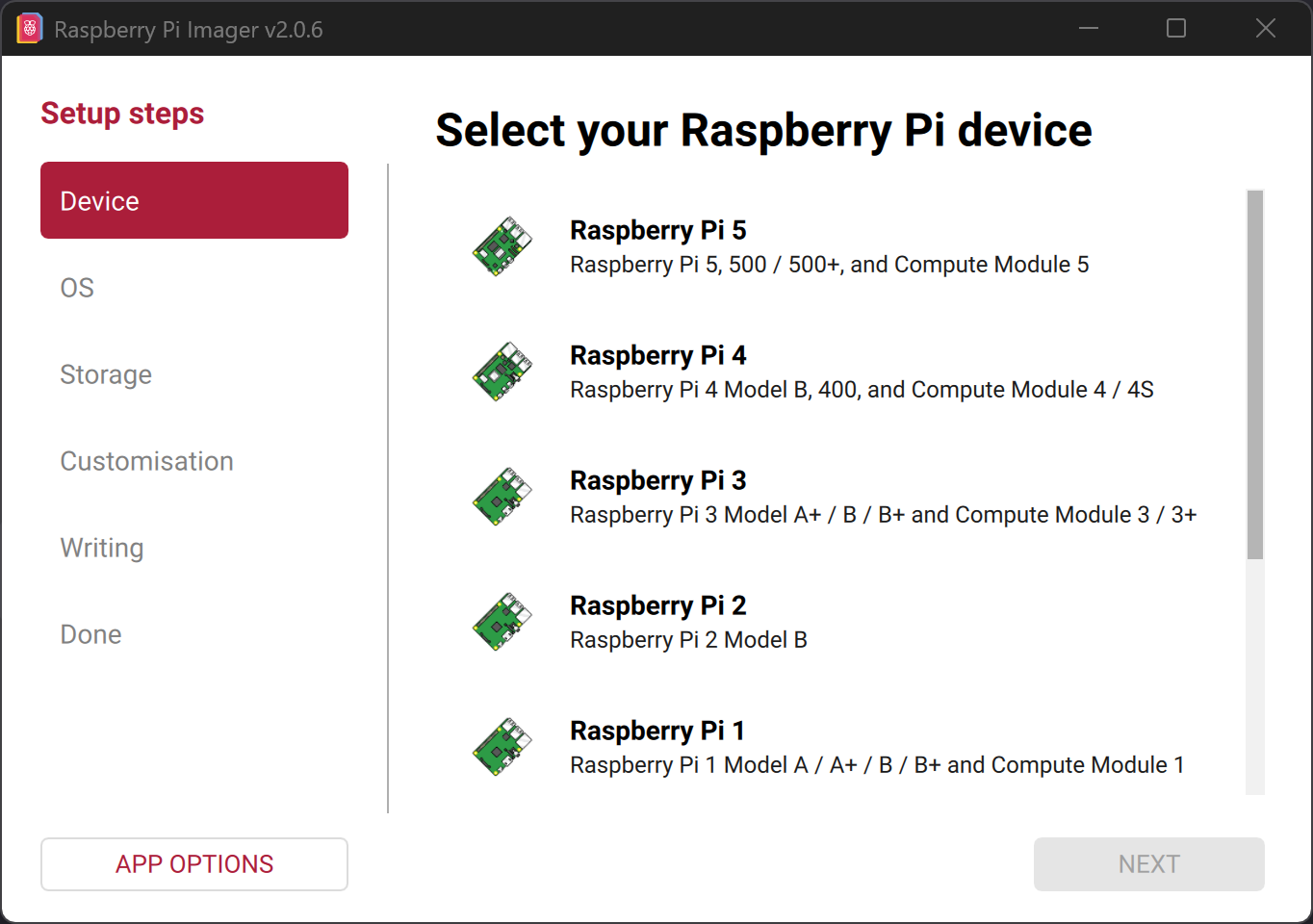
After starting the software, select the model you own.
-
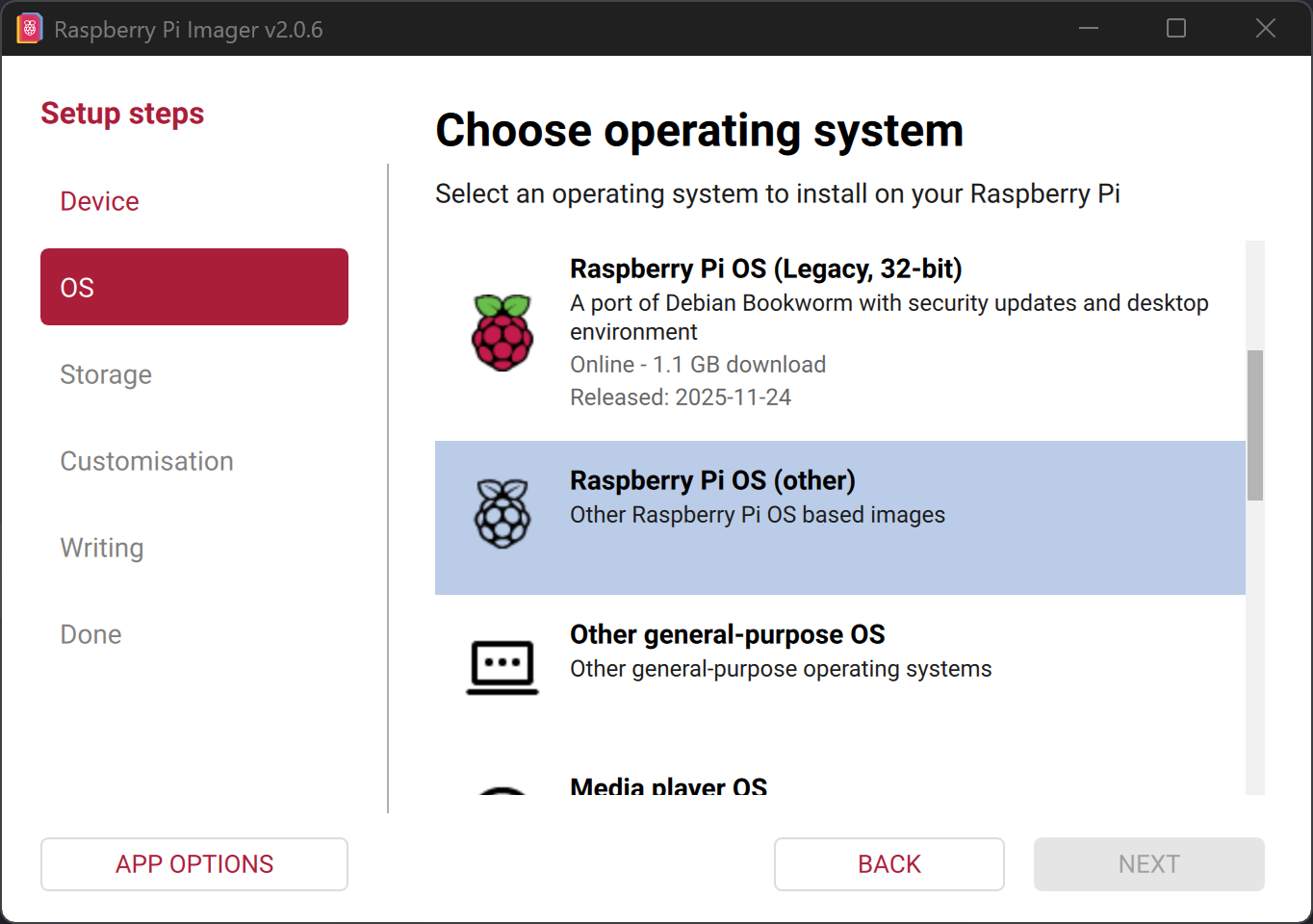
Next, select the operating system to be installed on the Raspberry Pi.
Click onRaspberry Pi OS (other)first.
-
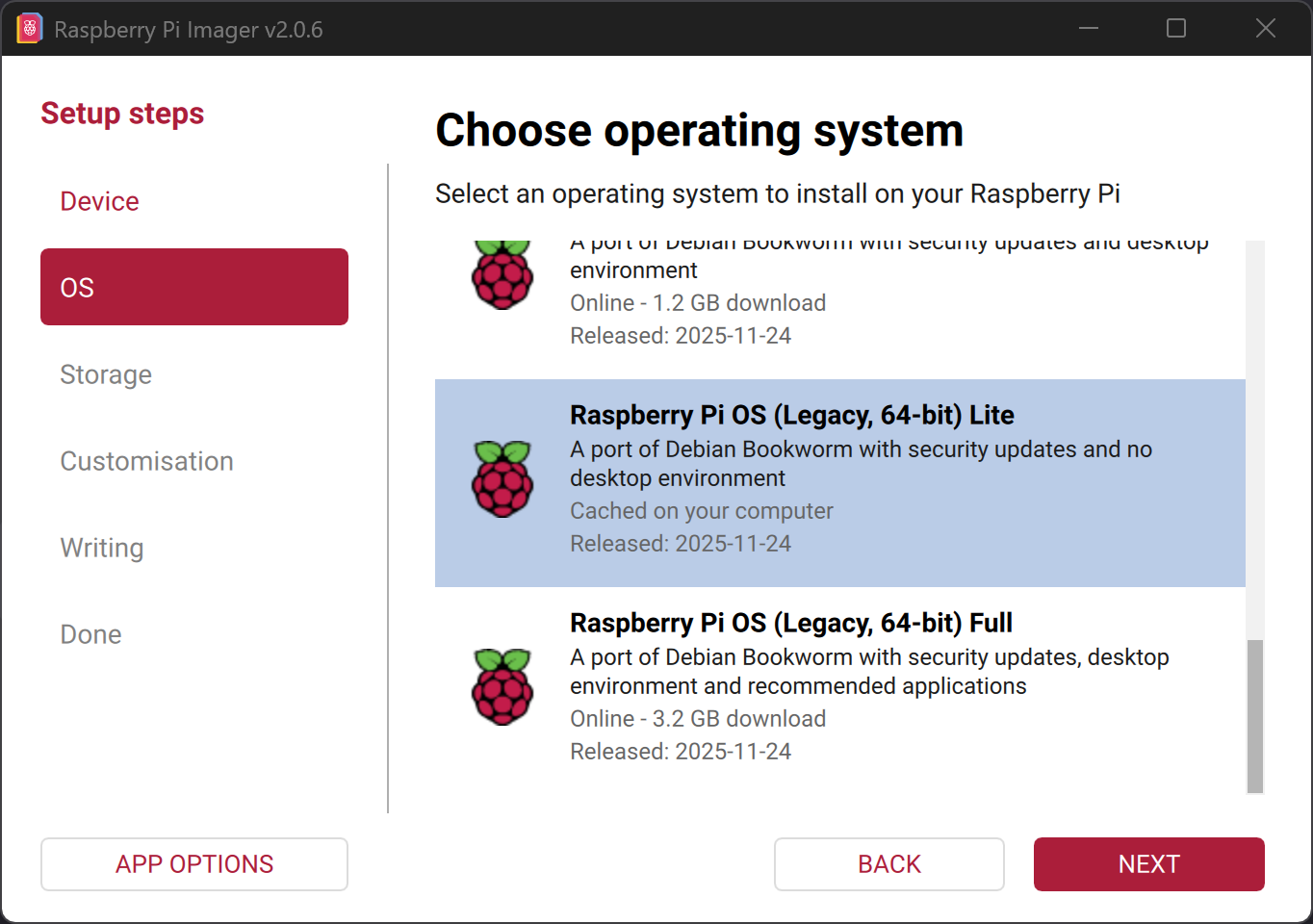
Click on
Raspberry Pi OS (Legacy, 64-bit) Lite | A port of Debian Bookworm with security updates and no desktop environment.
(Make sure to select Lite and Debian Bookworm)
-
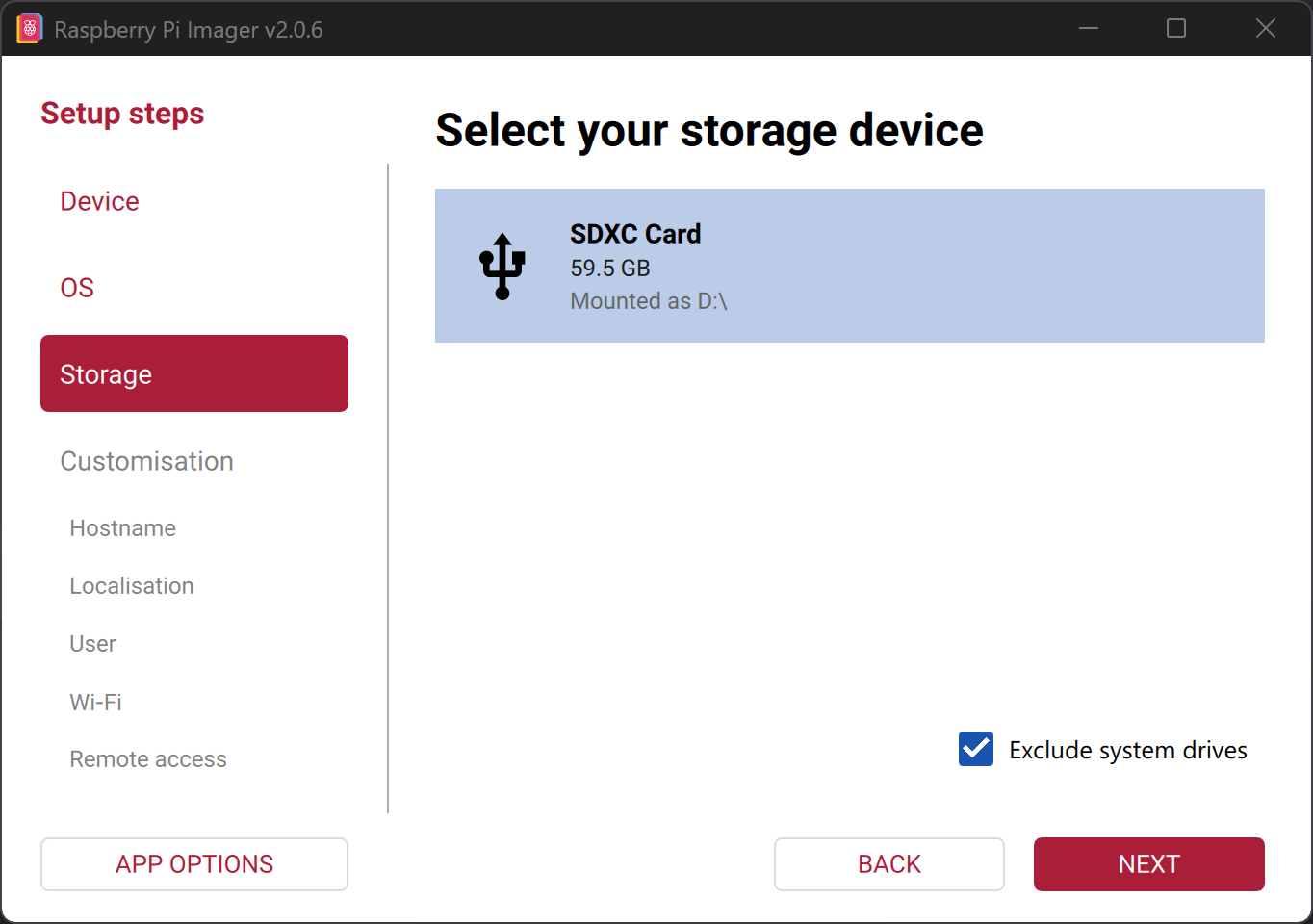
Now select the SD card that should be used for your BirdNET-Pi.
To be safe, verify the name of the SD card viaFile Manager (Explorer)>This PC, as all data on the SD card will be deleted in the next step.
-
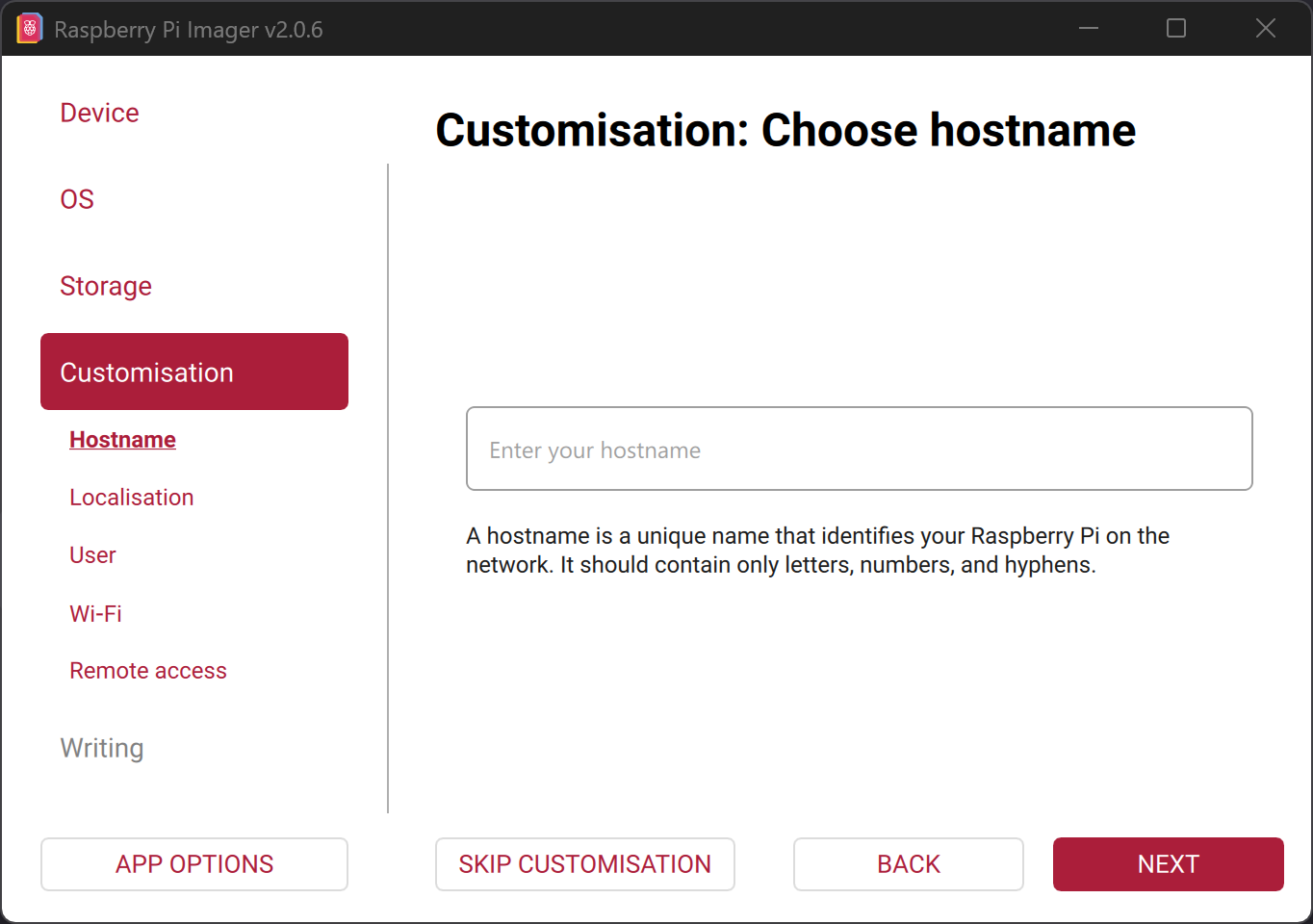
Now some additional settings need to be configured.
-
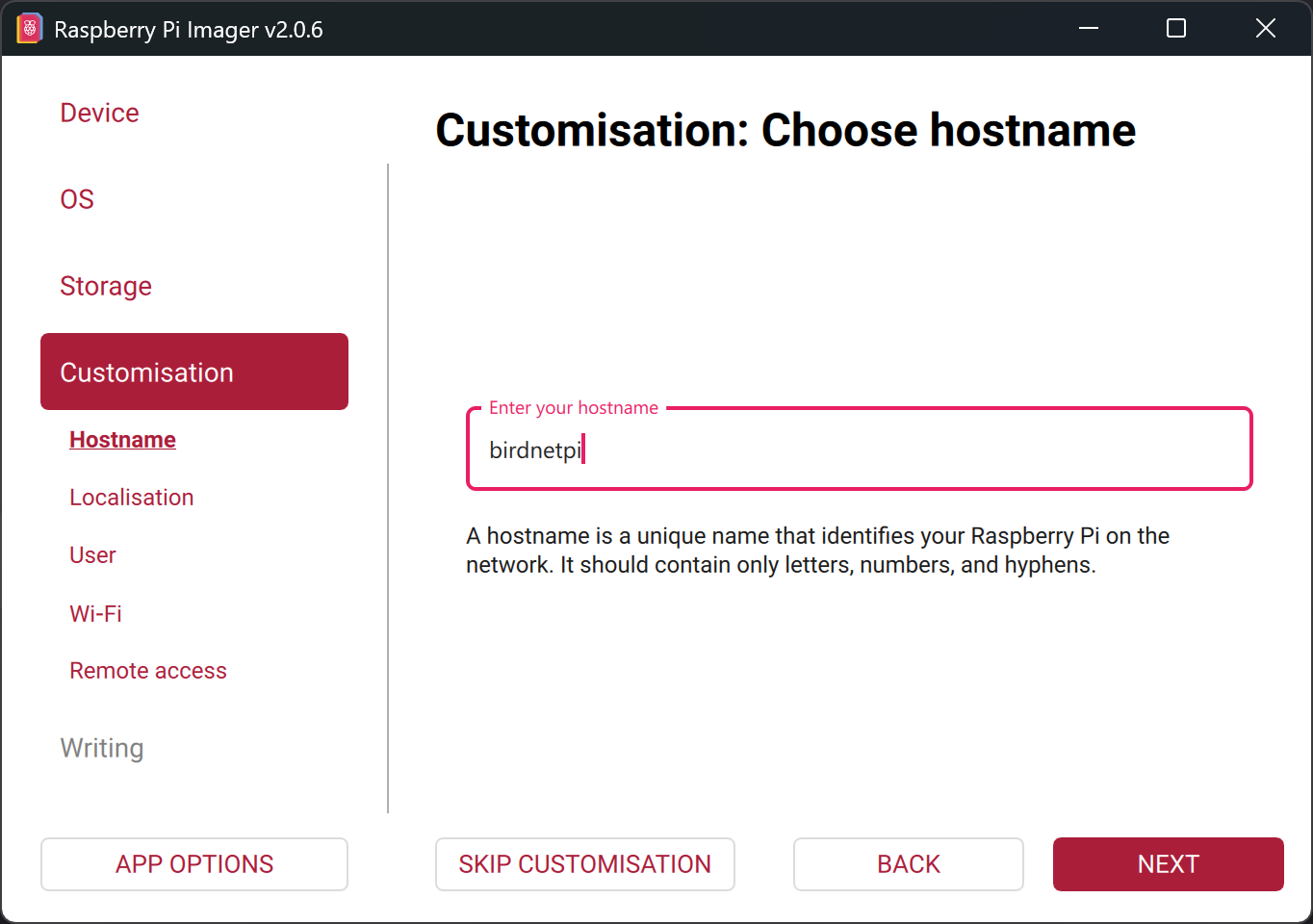
First, set the hostname under which the BirdNET-Pi should be accessible.
If you have multiple BirdNET-Pis in the same network, you can assign a different hostname to each one.
In this example, the installation will later be accessible athttp://birdnetpi.local, as this is the hostname defined in this step.
If this value is not set and the default hostnameraspberrypiis used instead, BirdNET will be accessible athttp://raspberrypi.localby default.
-
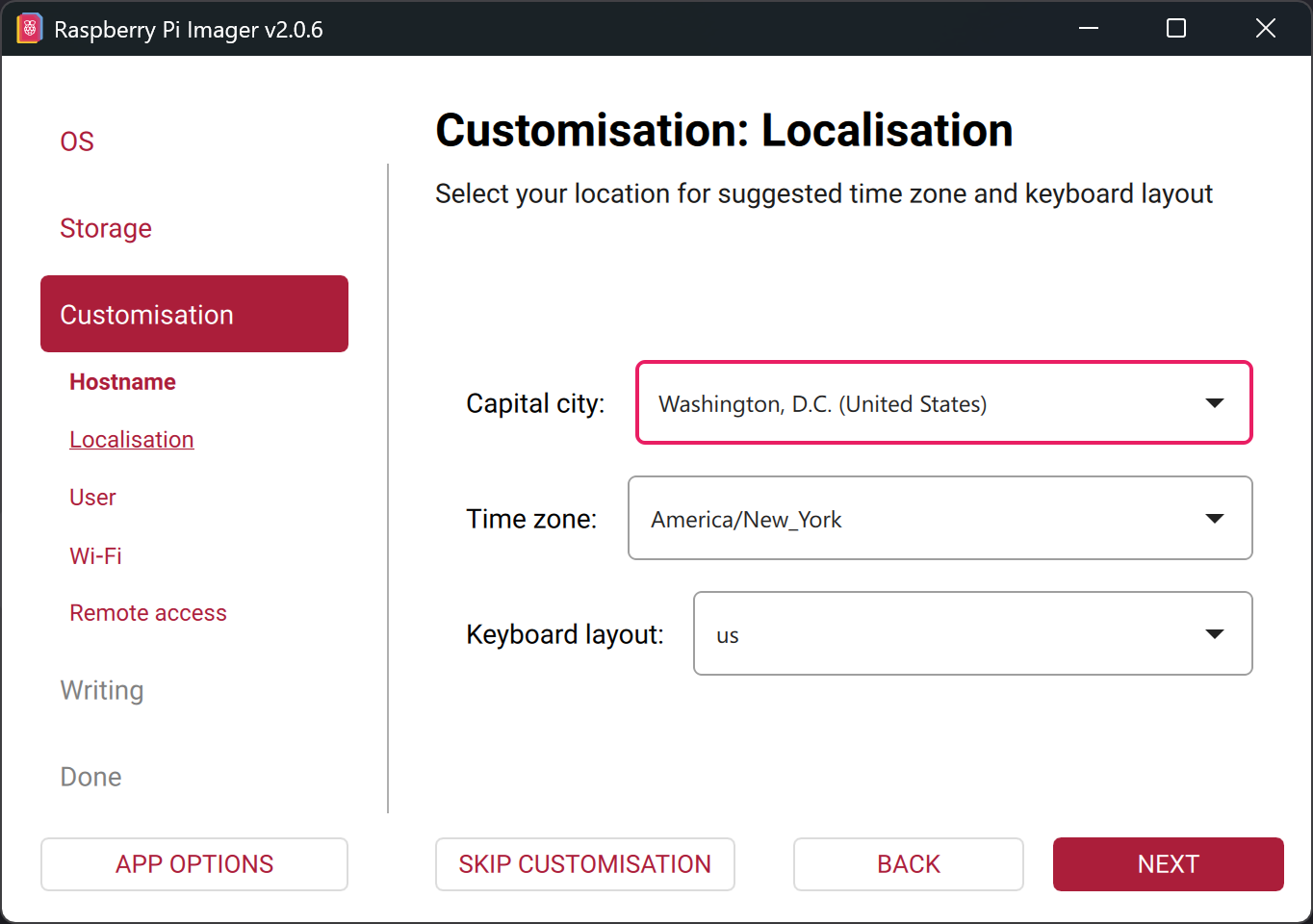
Then adjust your
TimezoneandKeyboard Layout.
-
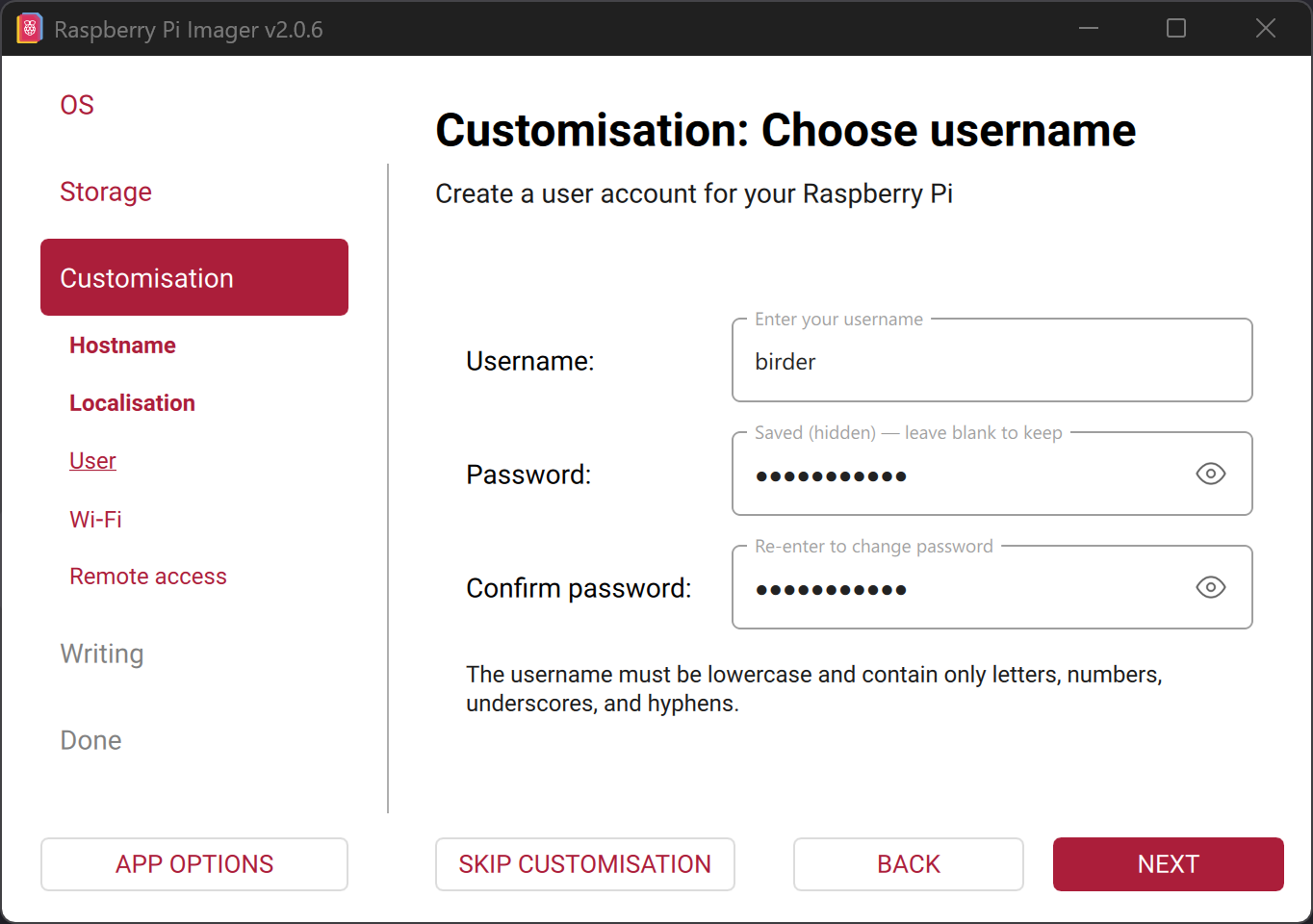
Next, set a username and password that will be used to access the Raspberry Pi later. In this example, a user named
birderwas created.
Remember the password, as you will need it later.
-
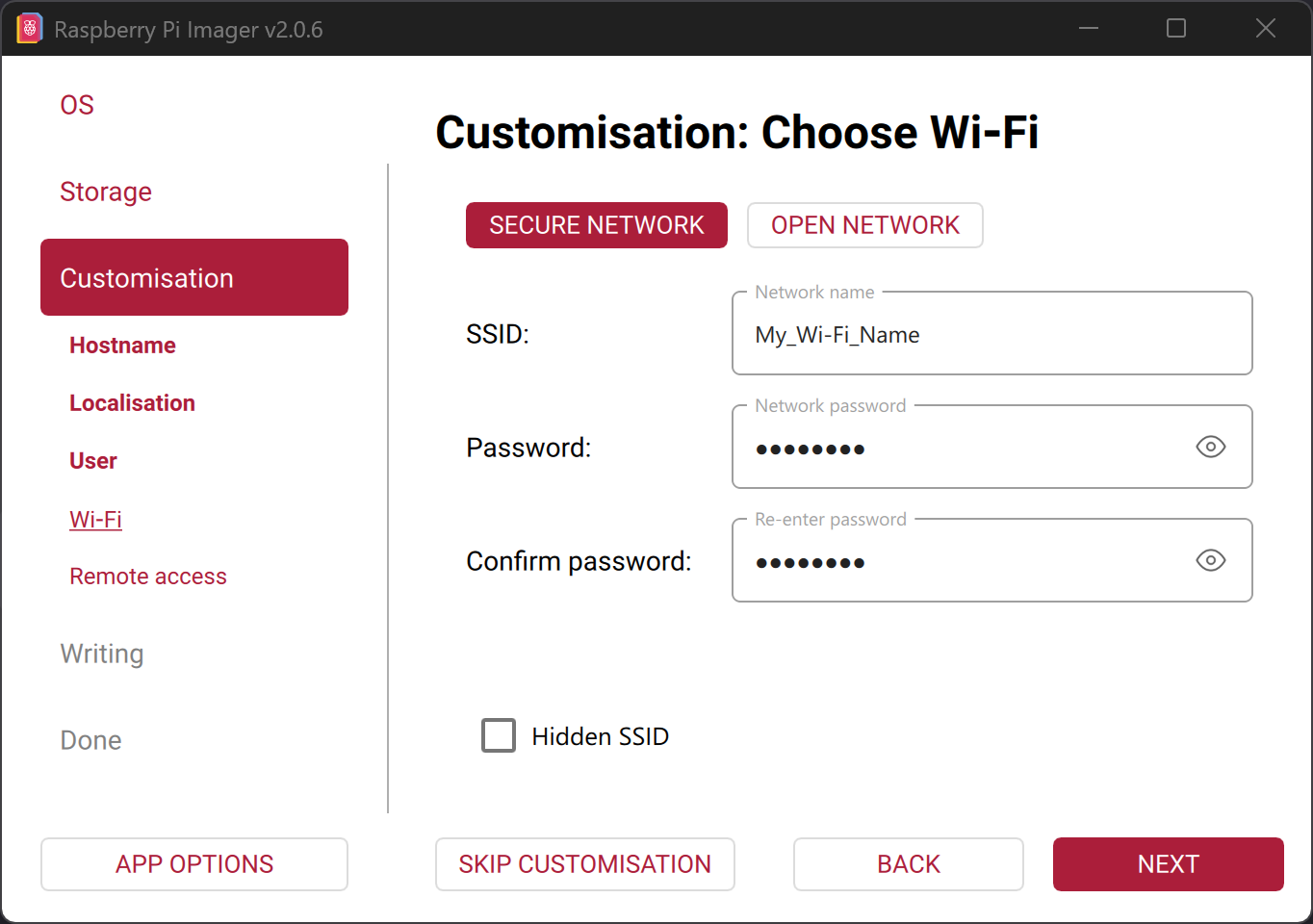
Enter the name of your Wi-Fi network under
SSIDand the password underPassword.
If you are not in your own Wi-Fi network, you can also create a hotspot using your PC or phone and enter those credentials in theSSIDandPasswordfields.
If the hotspot is not created using your PC, make sure in later steps that your PC is connected to the same hotspot.
Only then will your PC and Raspberry Pi be in the same network/Wi-Fi/hotspot.
Additionally, the device creating the hotspot must have an internet connection.
-
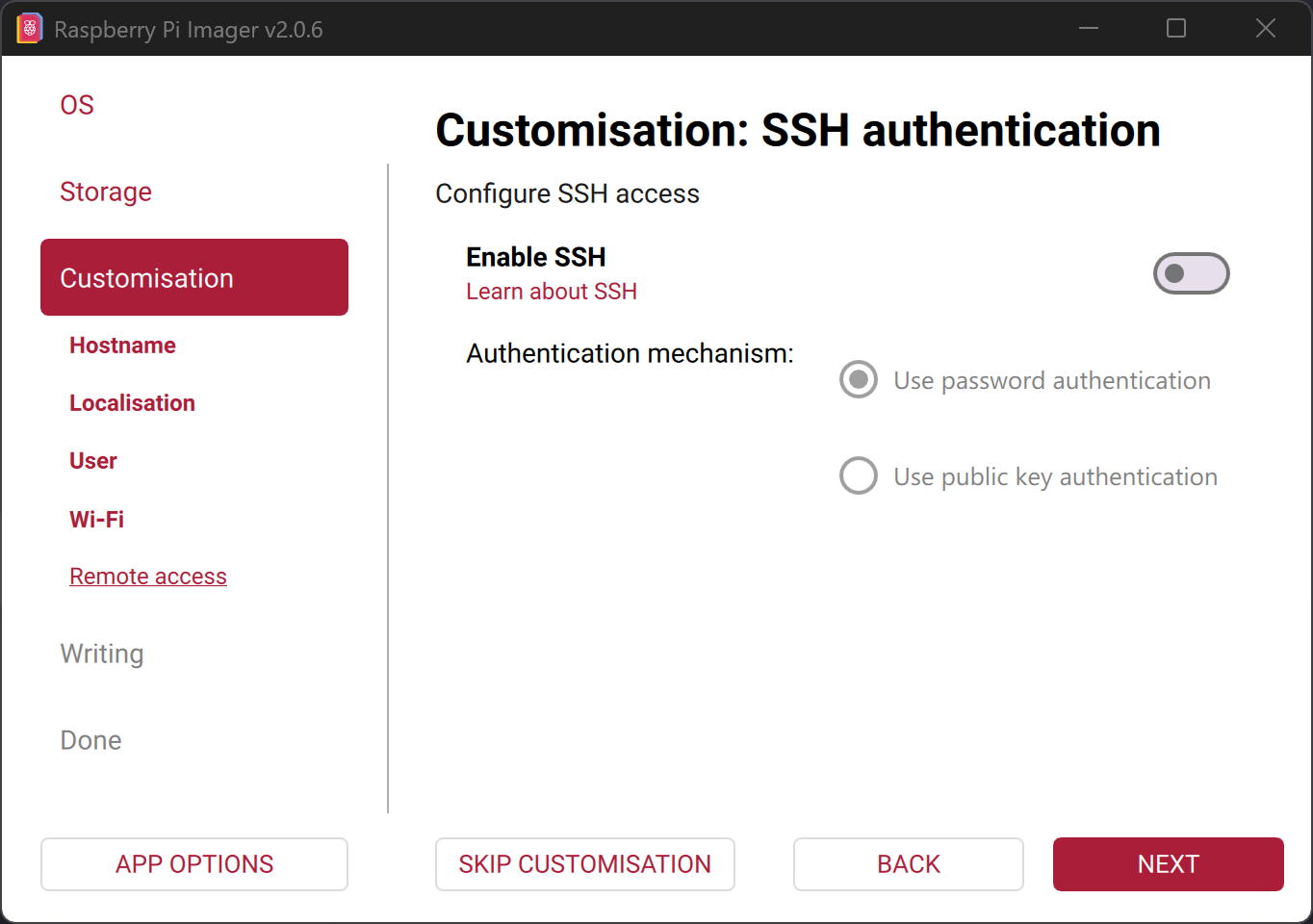
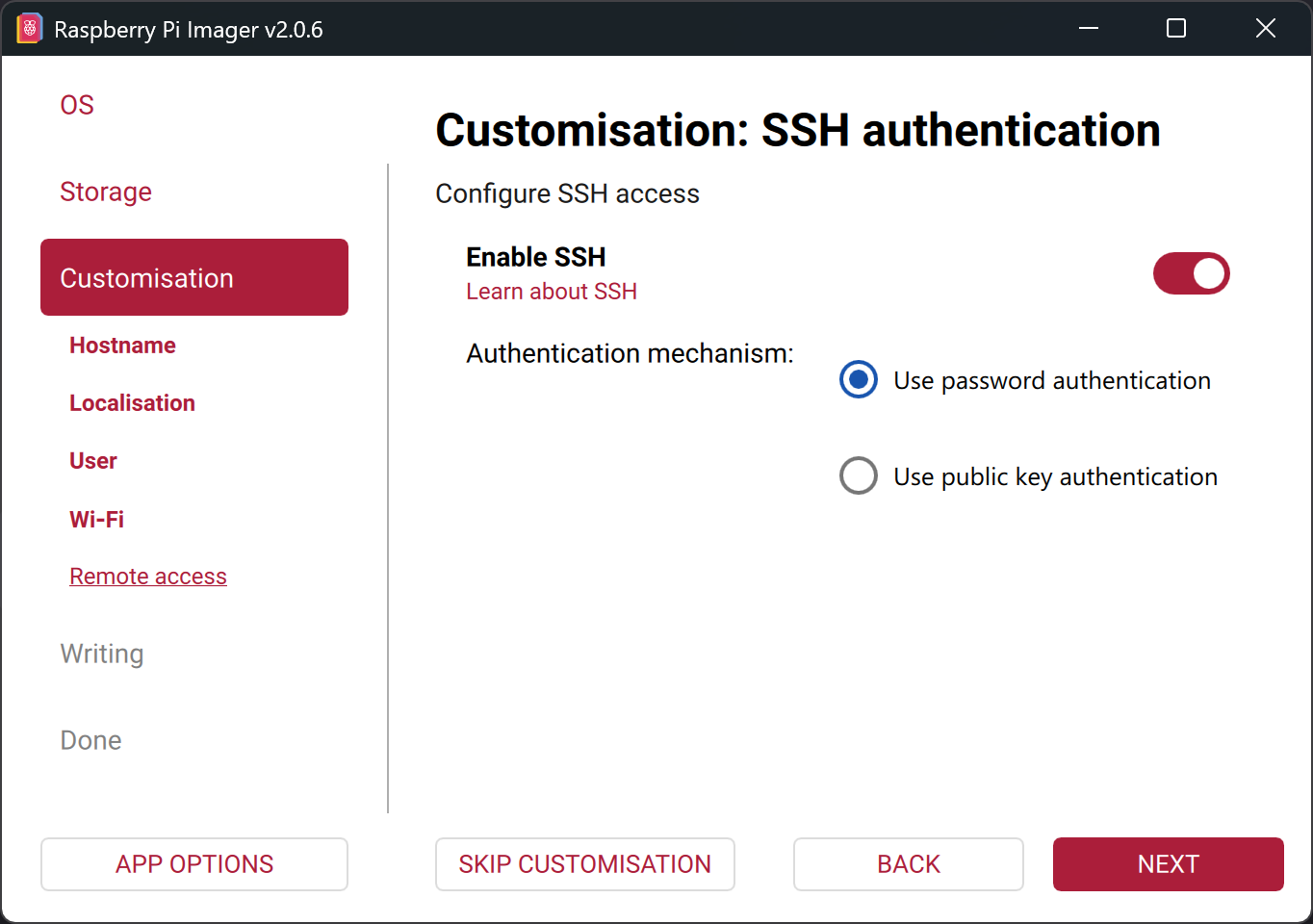
Enable SSH and select
Use password authentication.
This allows you to conveniently set up your BirdNET-Pi from your computer without needing to connect a screen or keyboard to the Raspberry Pi.
-
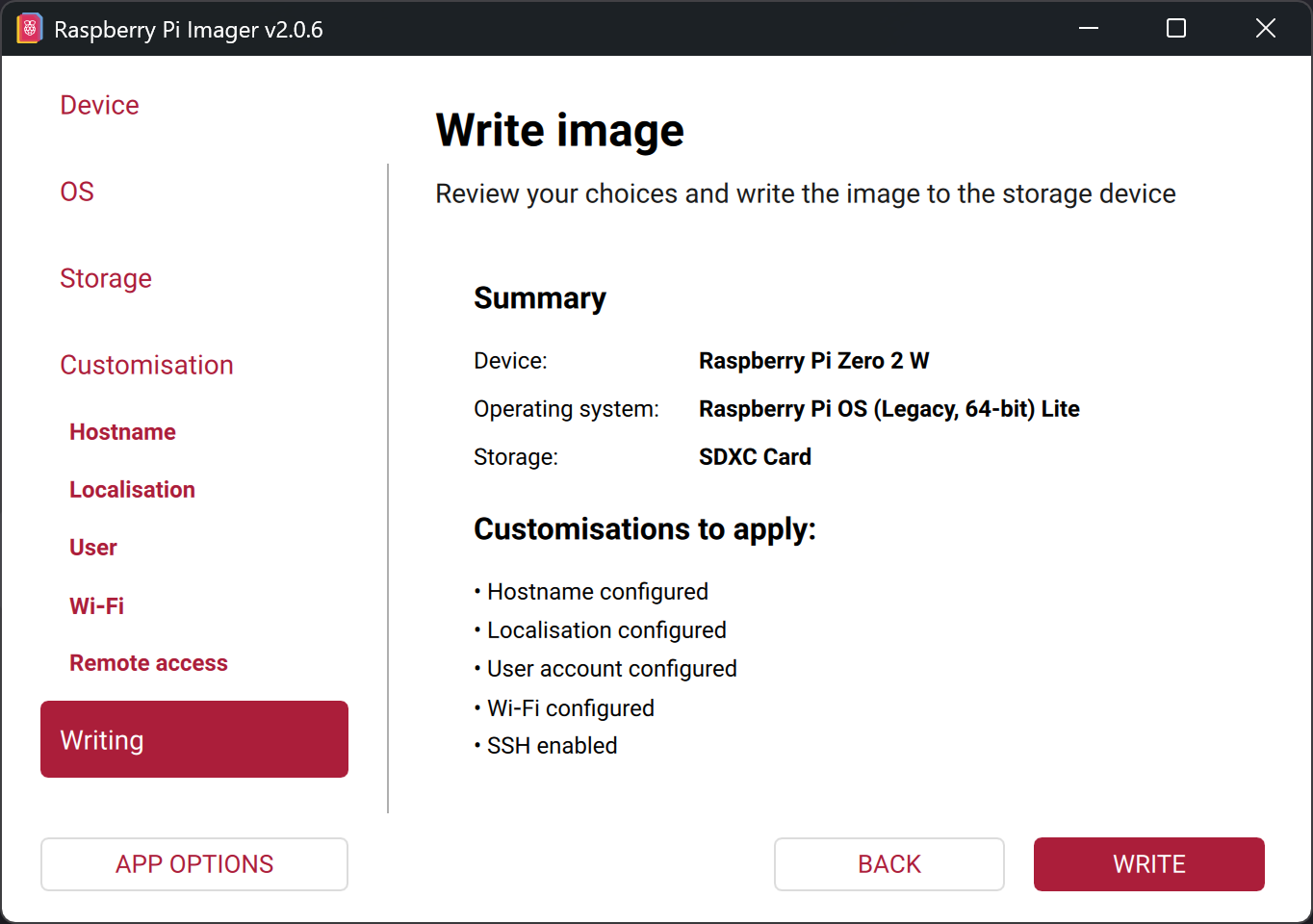
You will now see a summary of your settings. Review them before clicking
Write.
-
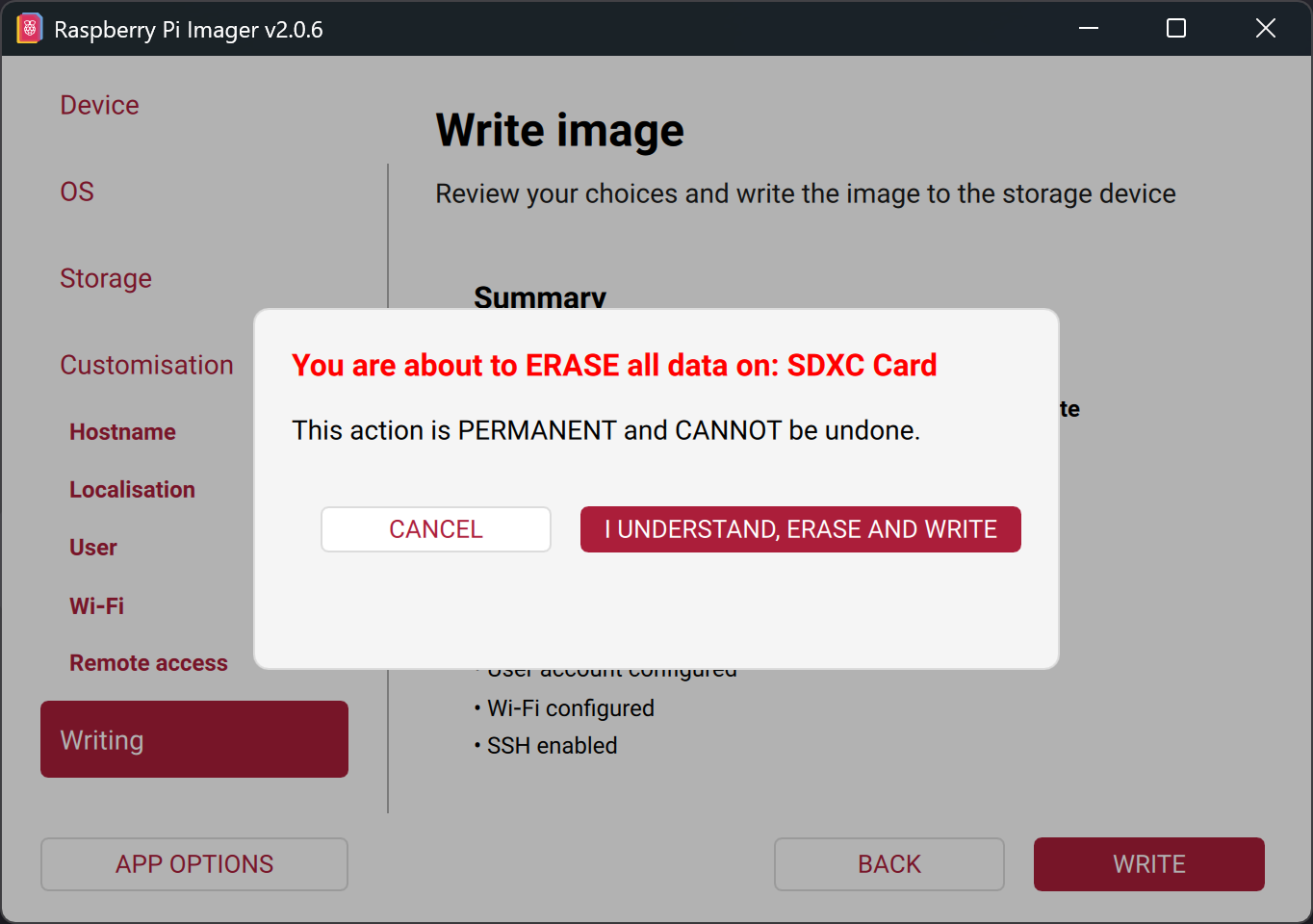
Click on
Yes. Erase and write.
-
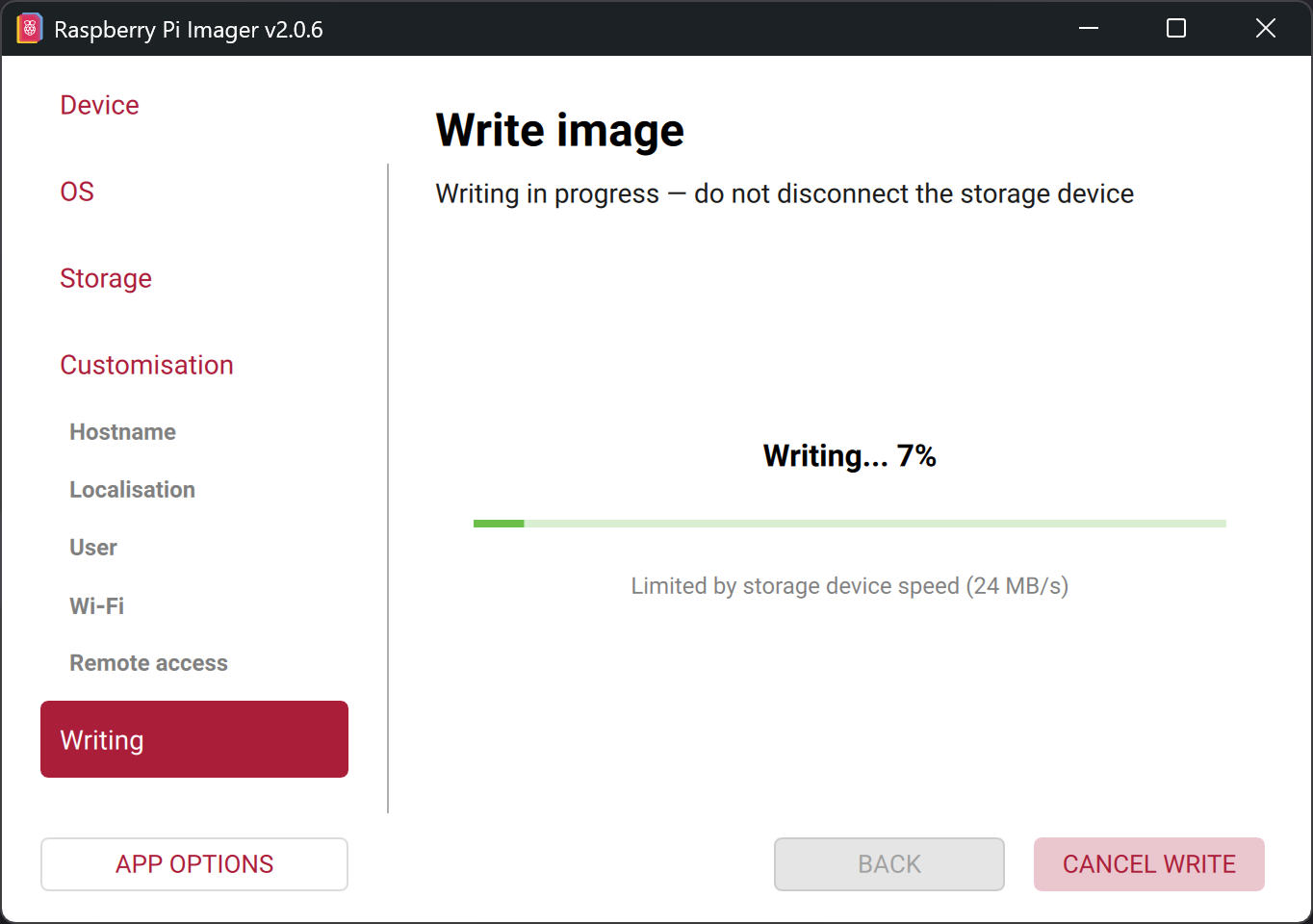
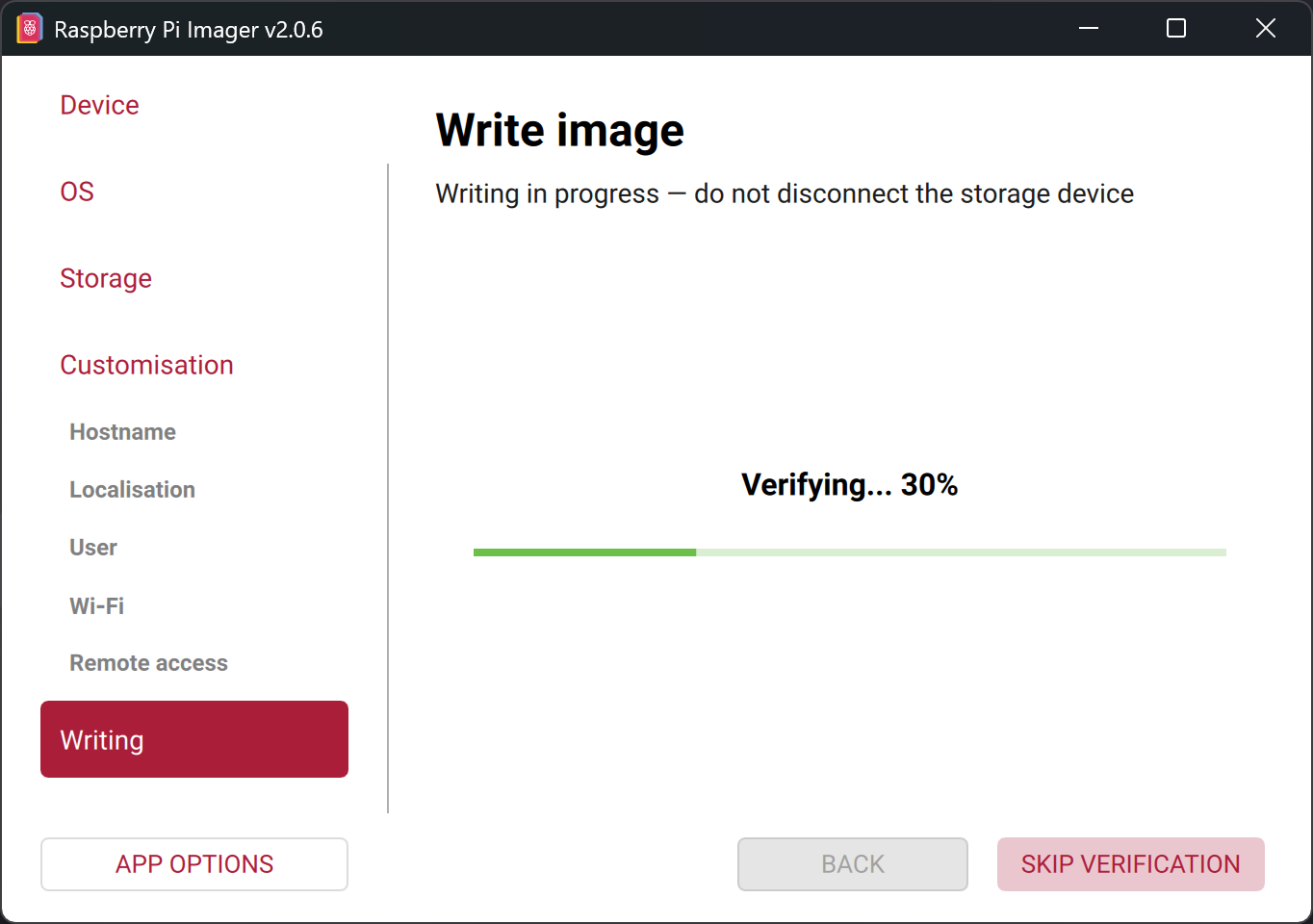
All data on your SD card will now be deleted and Raspberry Pi OS will be installed. This process may take about 10 minutes.
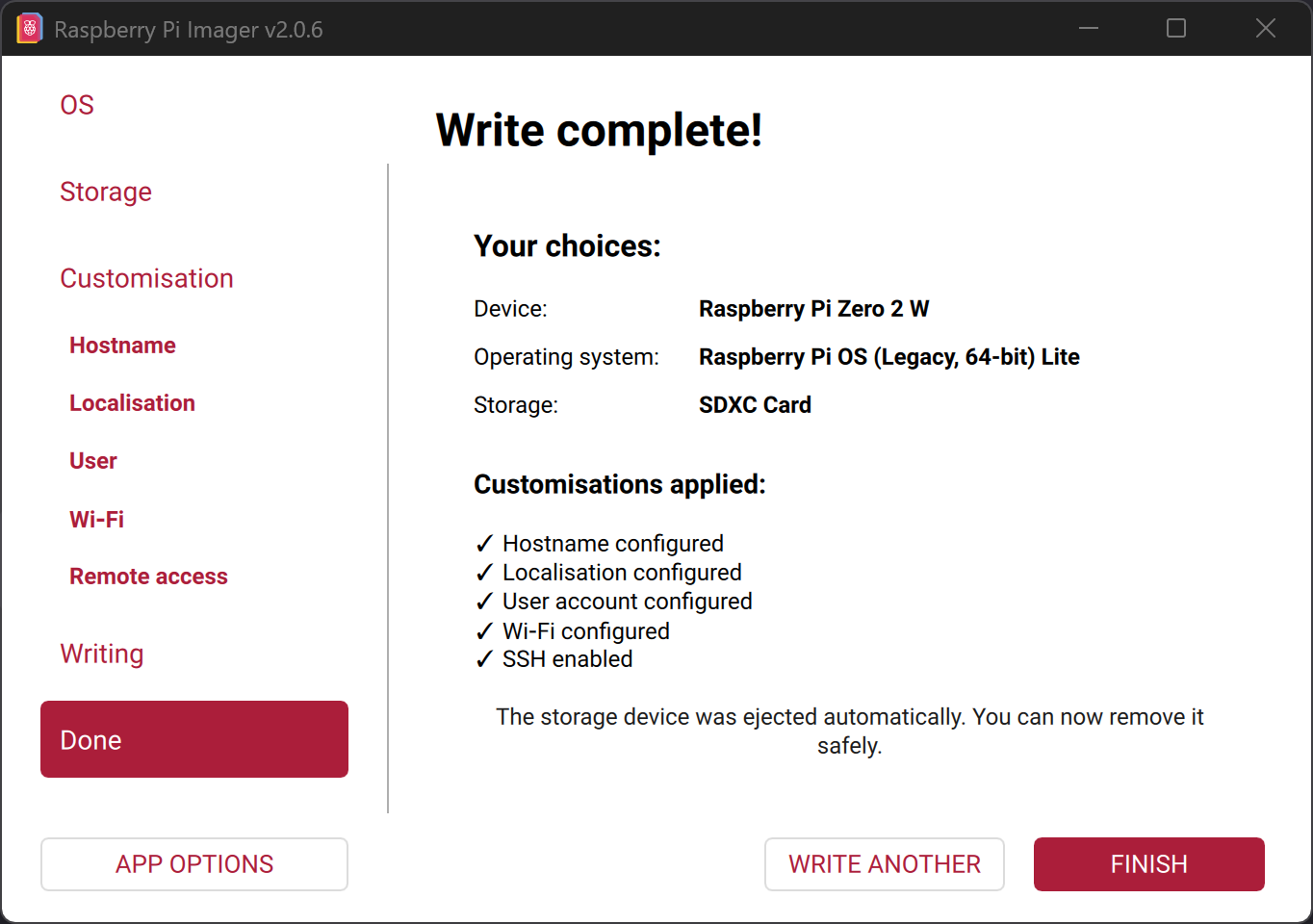
-
Once the SD card is ready, a confirmation message will appear. You can now remove the SD card from your computer.