Setting up your SD card
Have you checked off all the items on the checklist? Then take some time to set up your Raspberry Pi at your leisure.
If you encounter any problems, don’t hesitate to contact us by email.
Requirements
Section titled “Requirements”You will need a computer, an SD card suitable for your Raspberry Pi, and an internet connection.
Setting up the SD card
Section titled “Setting up the SD card”Installing the operating system
Section titled “Installing the operating system”-
Connect the microSD card to your computer. Make sure you know what the SD card is named on your computer. If there is any data on the SD card, you should back it up, as it will be lost during the installation process. In Windows, you can do this via File Explorer > This PC.
-
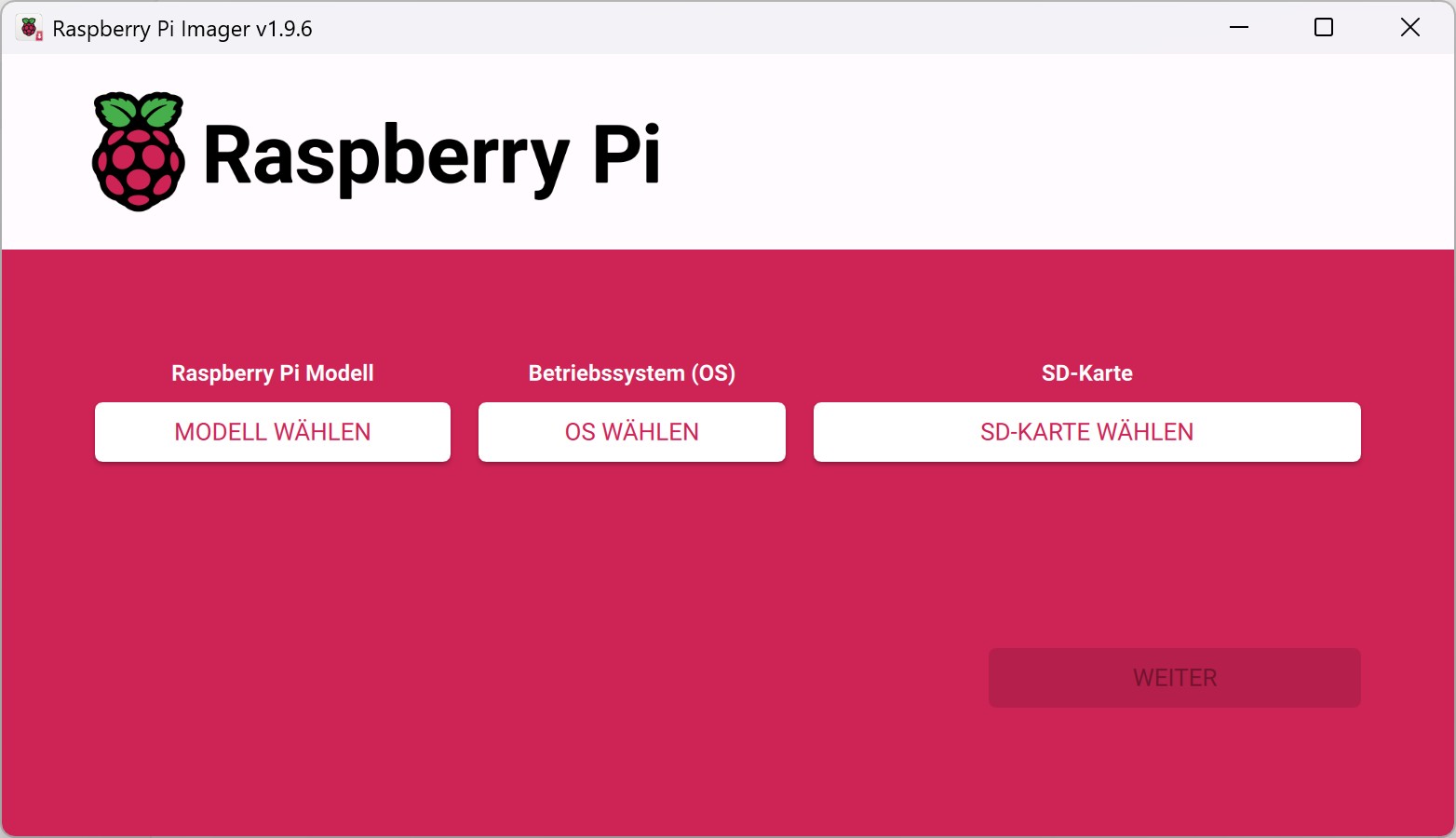
Download Raspberry Pi Imager from raspberrypi.com and open it. Simply follow the installation instructions.
-
Click on
Select modeland choose the model you have.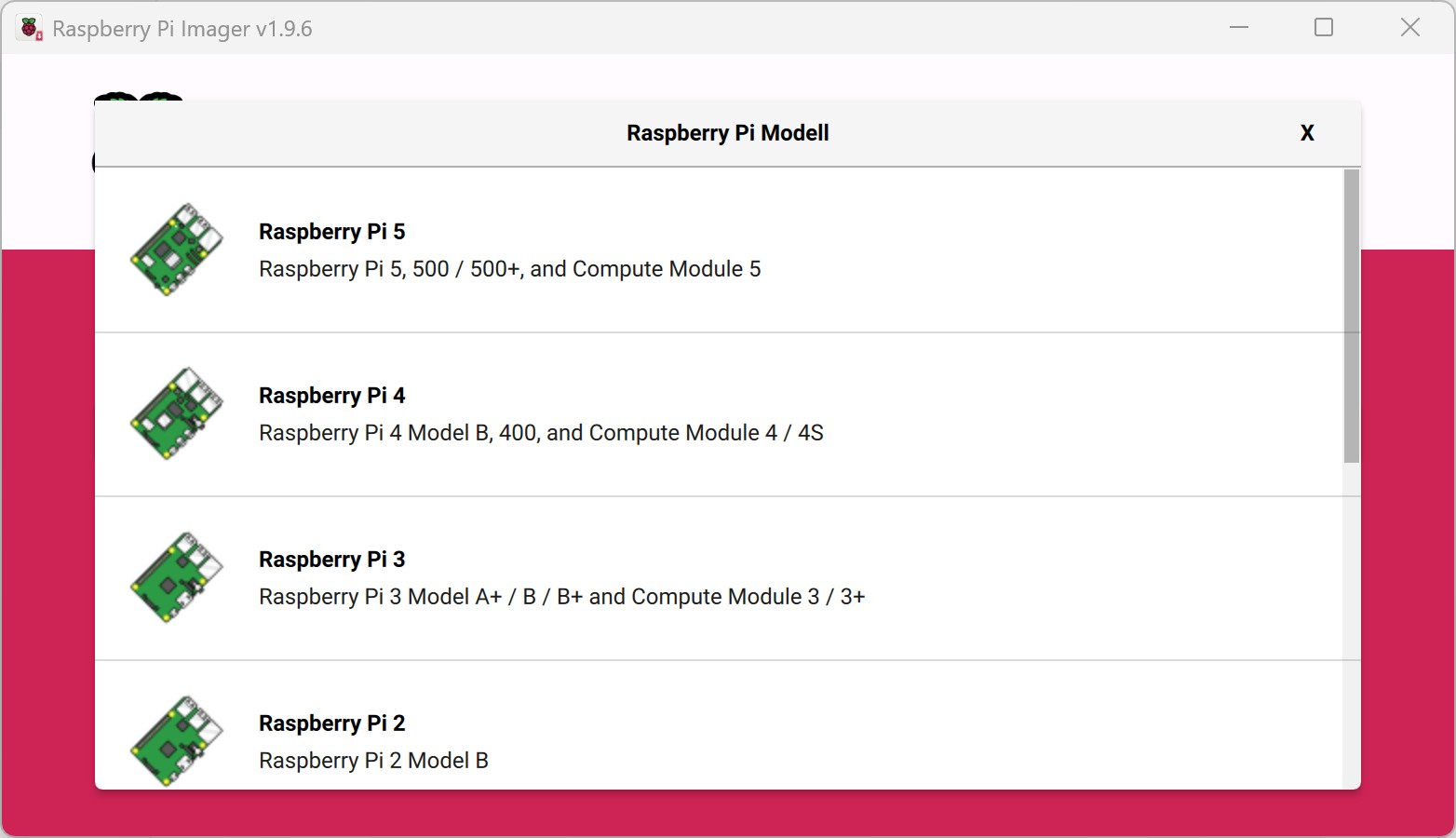
-
Next, click on
Select OSand then onRaspberry Pi OS (other).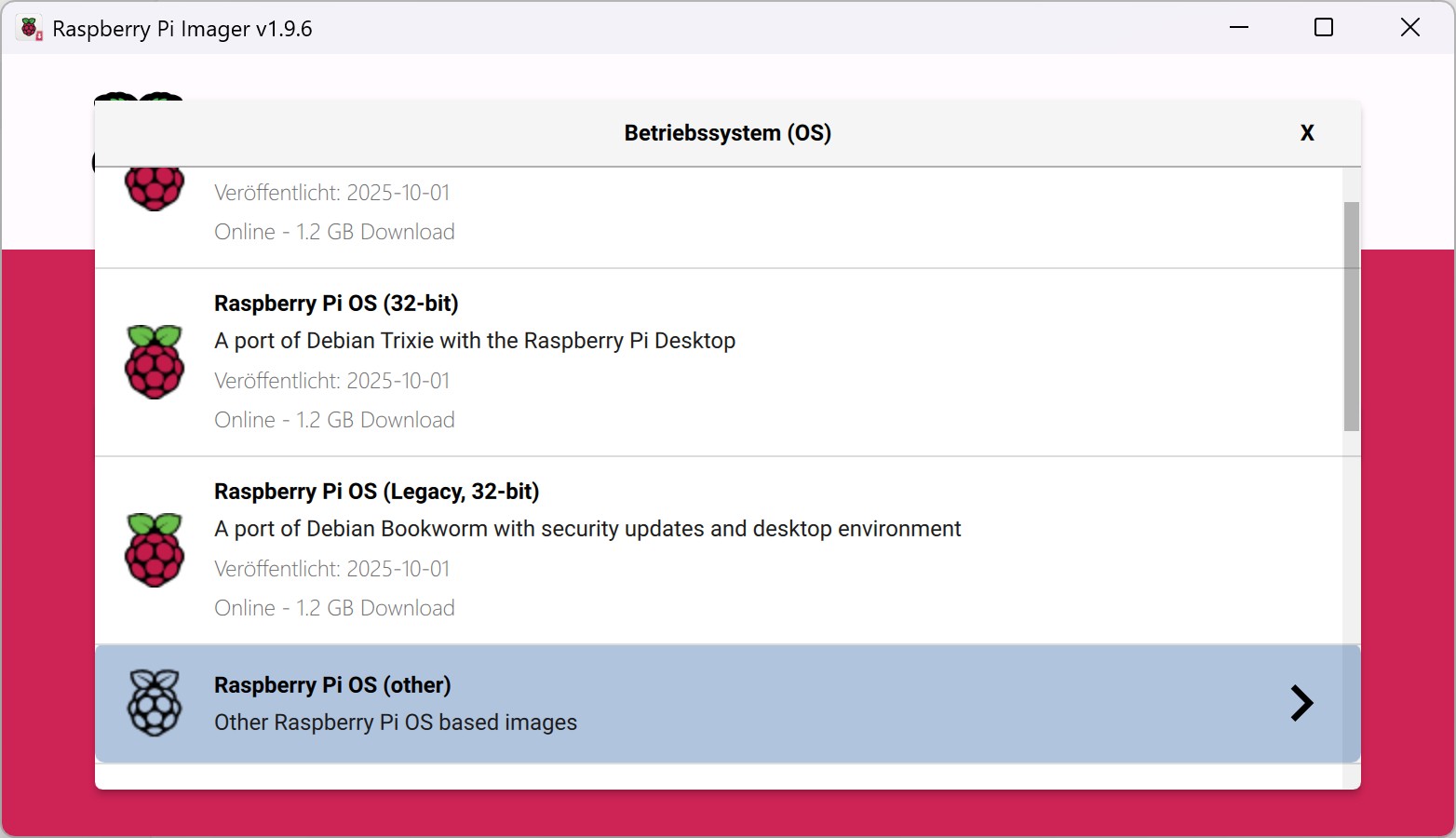
-
Click on
Raspberry Pi OS (Legacy, 64-bit) Lite | A port of Debian Bookworm with security updates and no desktop environment. (Pay attention to Lite and Debian Bookworm)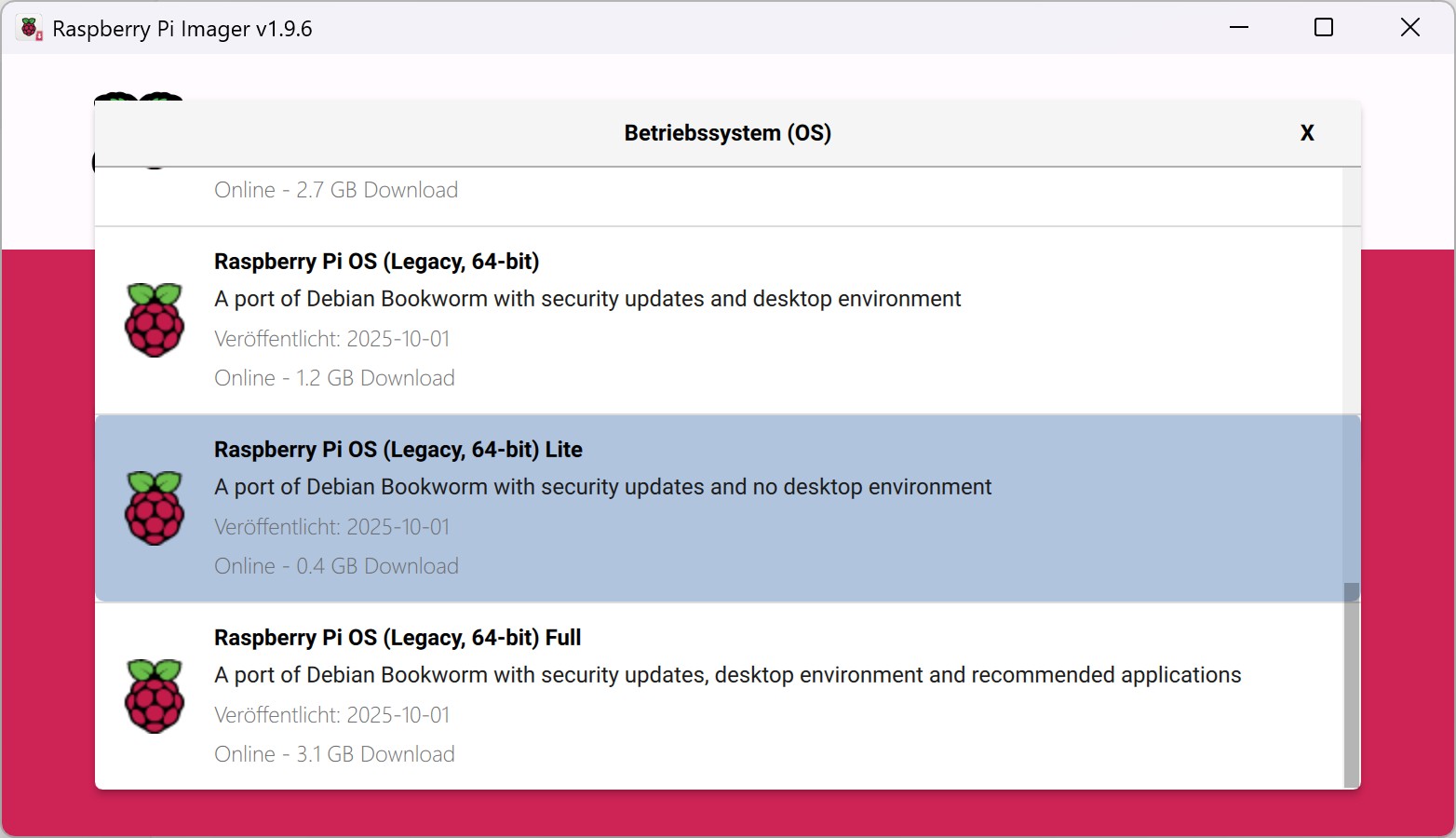
-
Click on
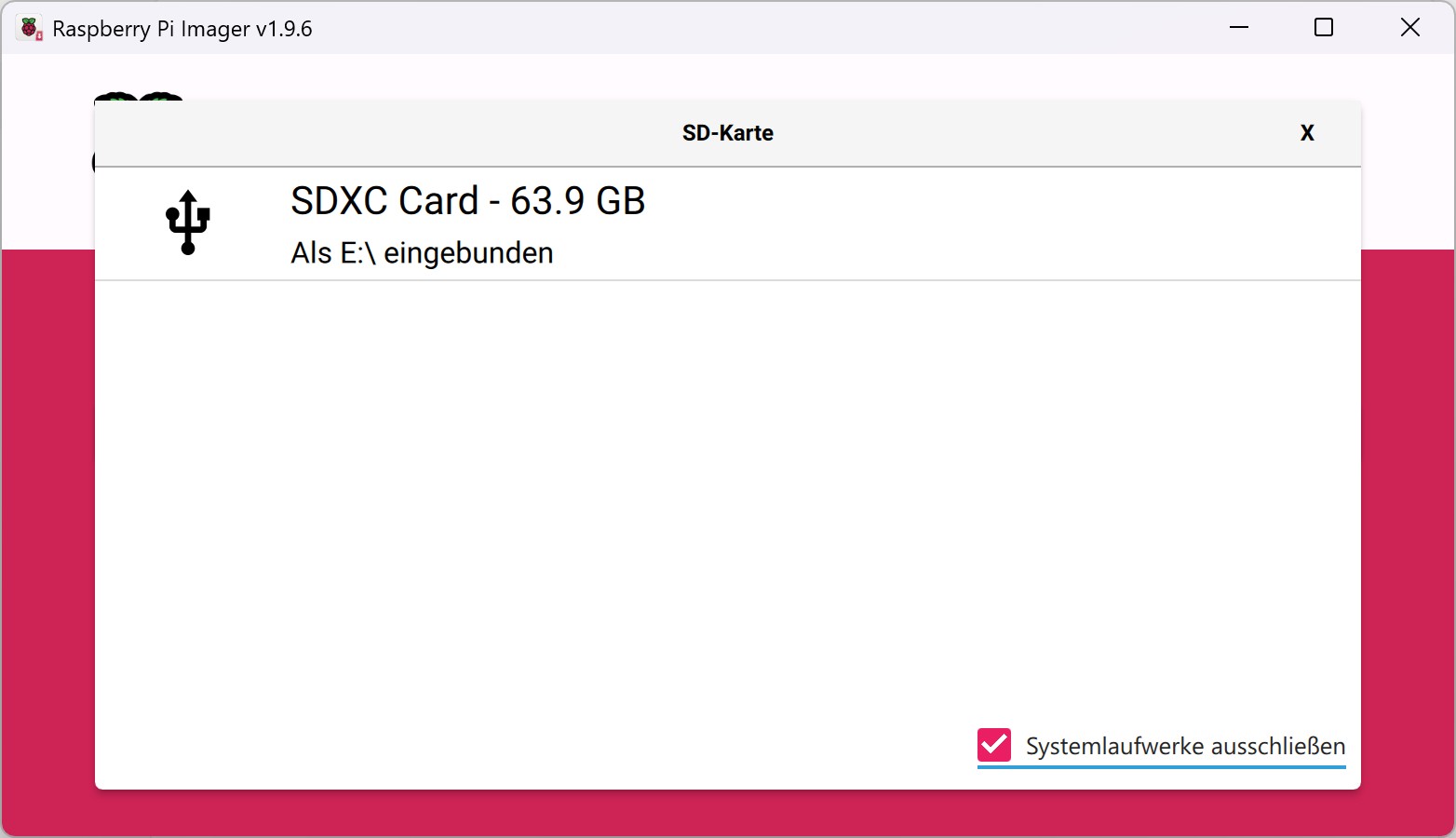
Select SD cardand select the SD card that your BirdNET Pi should use. Check the name of the SD card viaFile Manager (Explorer)>This PC, as the data on the SD card will be deleted in the next step.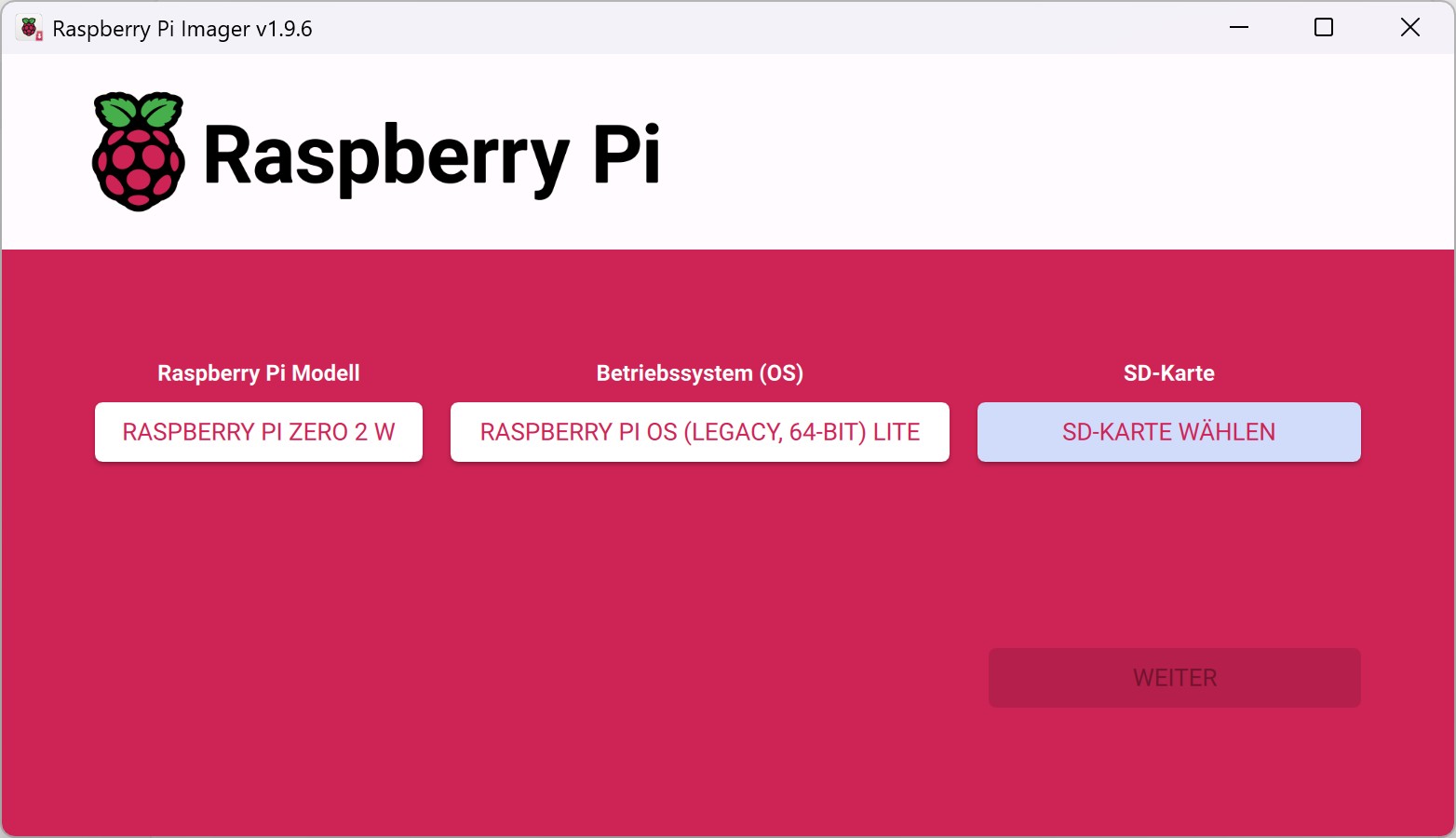
-
Click on
Next.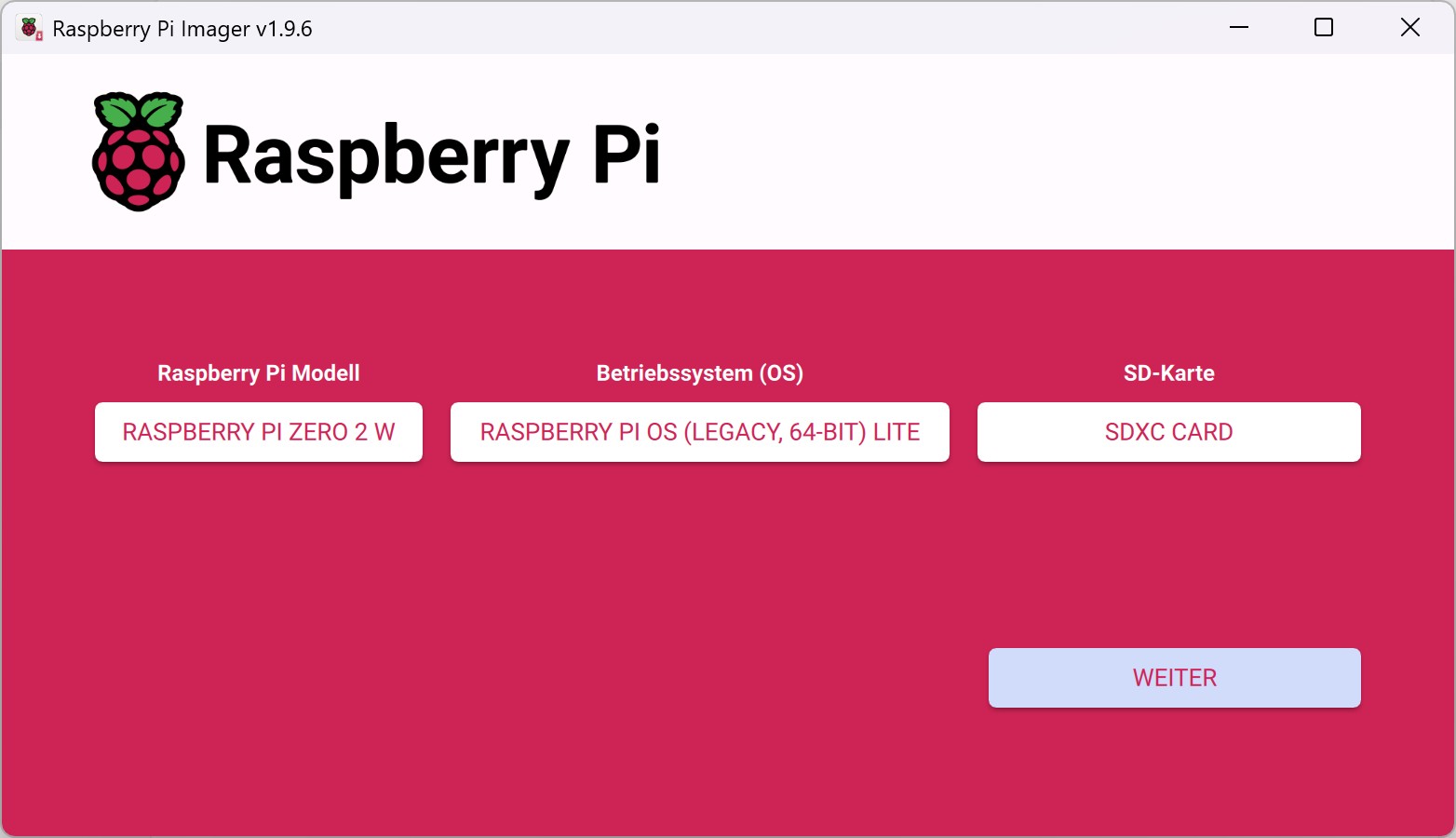
-
Click on
Edit Settings.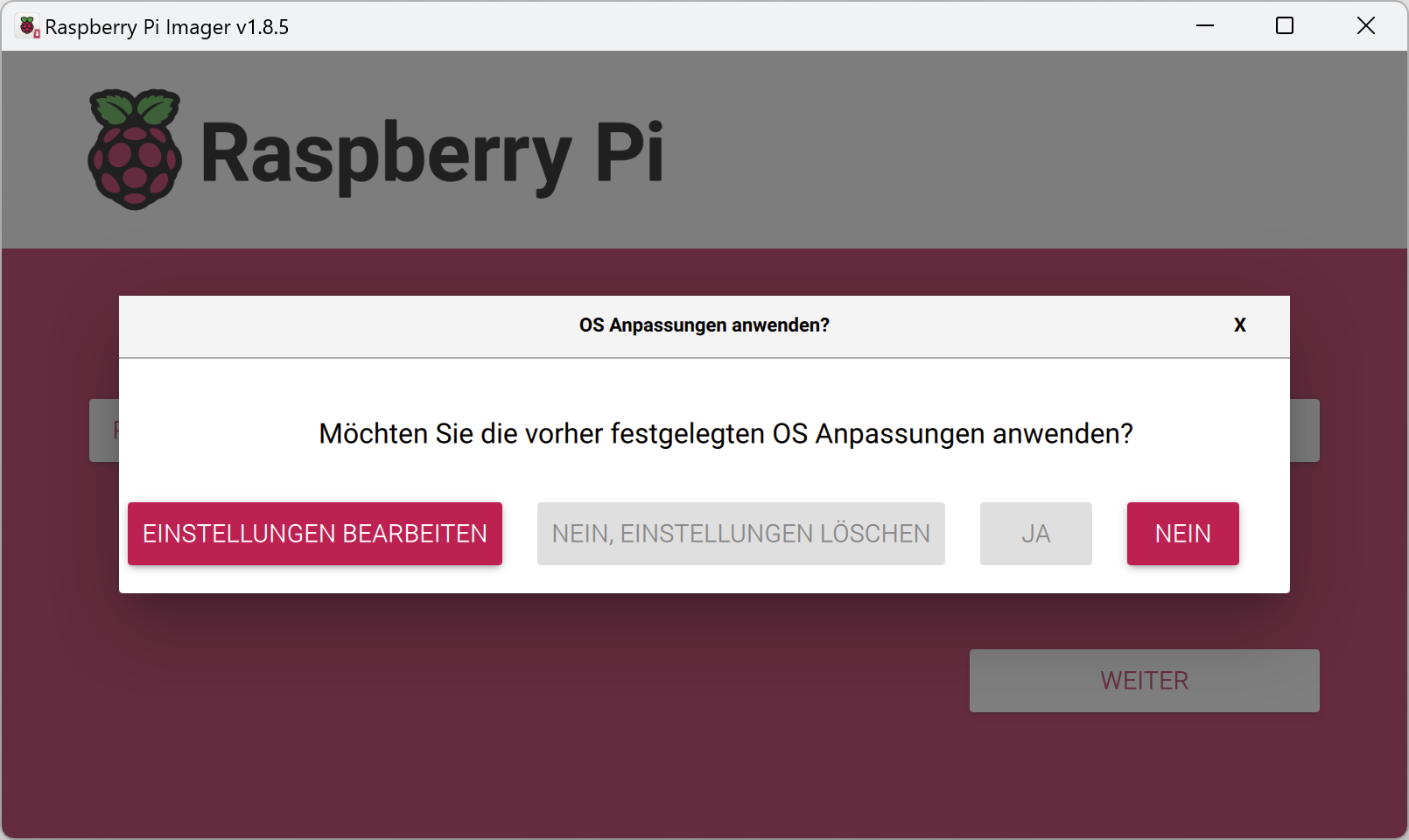
-
Now let’s set up all the items under
General.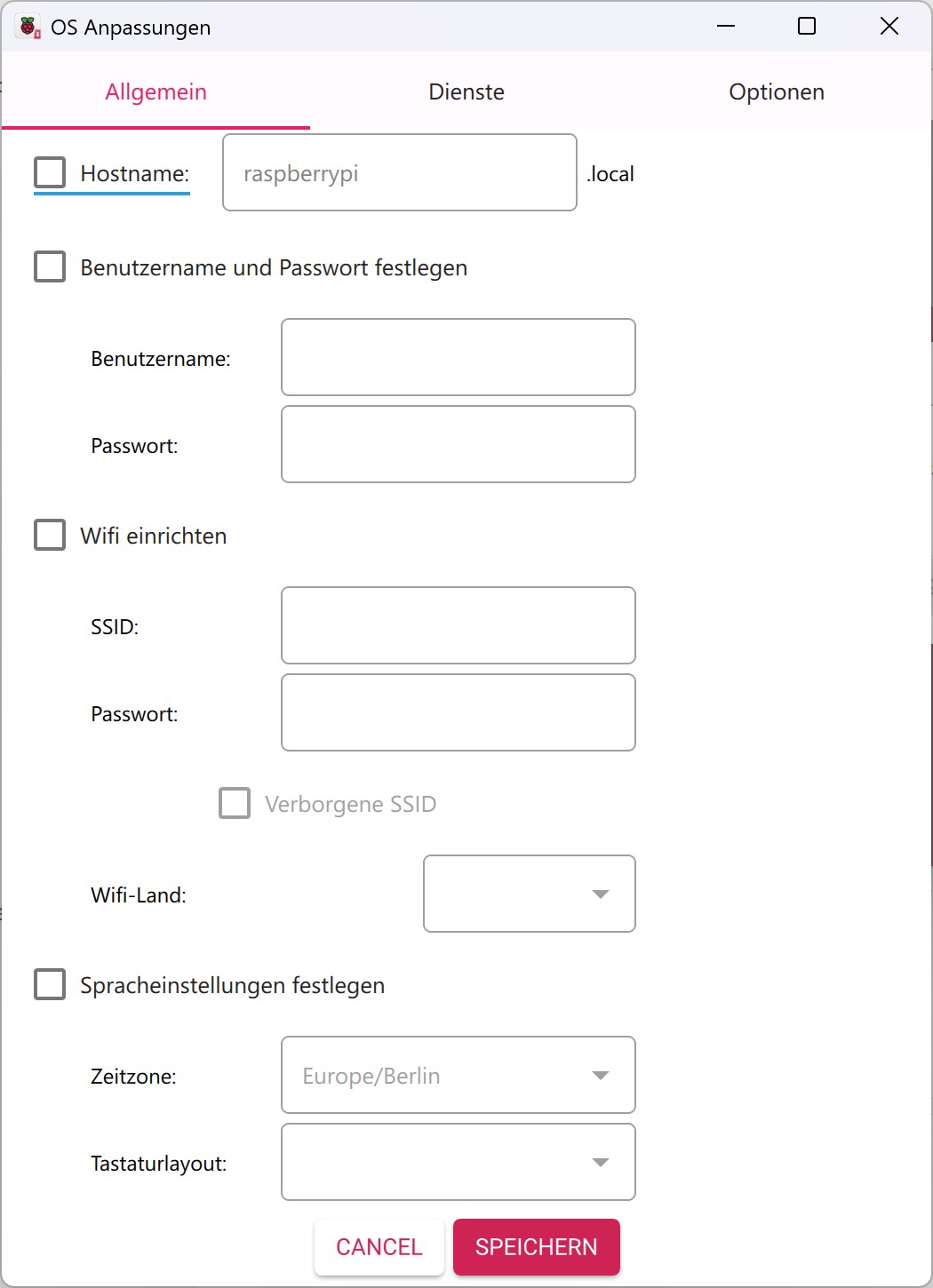
-
Set the
Hostnameunder which the BirdNET Pi should be accessible. For example, if you have multiple BirdNET Pis on the same network, you can give each one a different hostname. In this example, the installation is accessible athttp://birdnetpi.local, as this is the hostname specified in this step. If you do not set this value (and use the default hostname raspberrypi), the BirdNET installation will be accessible at http://raspberrypi.local by default.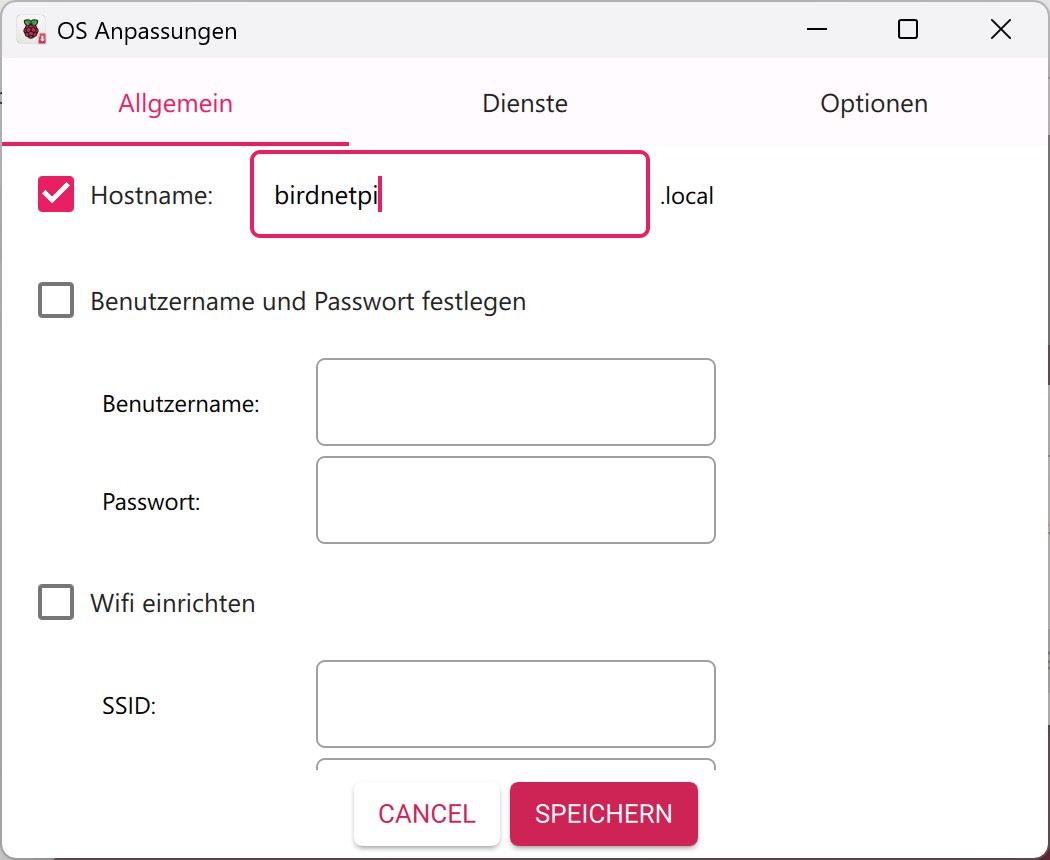
-
Next, we will set a username and password that we can use to access the Raspberry Pi later. In this example, we have created a user named
birder. Remember the password, as we will need it later.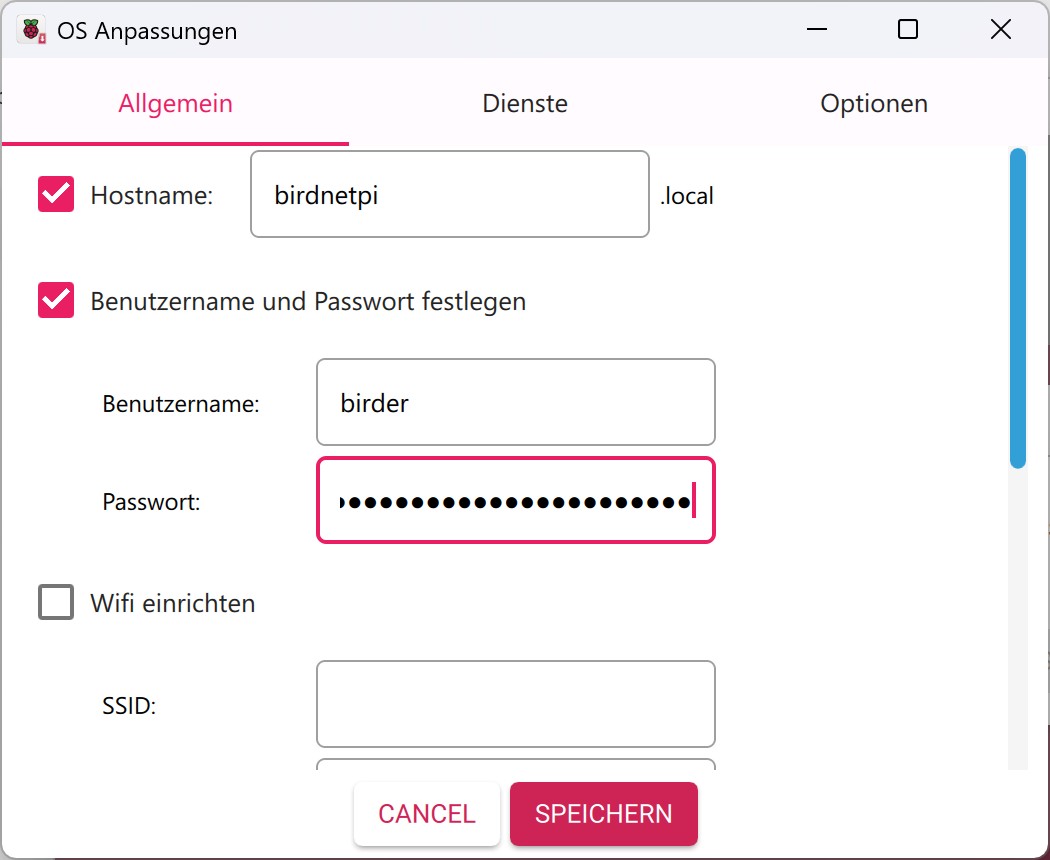
-
Now enter the name of your Wi-Fi network under
SSIDand the password for your Wi-Fi network underPassword. If you are not connected to your own Wi-Fi network, you can also create a hotspot via your PC or cell phone and enter the relevant data in theSSIDandPasswordfields. If you do not create the hotspot with your PC, you must ensure in later steps that your PC is connected to the same hotspot. This is the only way to ensure that your PC and Raspberry Pi are on the same network/Wi-Fi/hotspot. In addition, the device you use to create the hotspot must be connected to the Internet. You can selectDEas theWiFi country.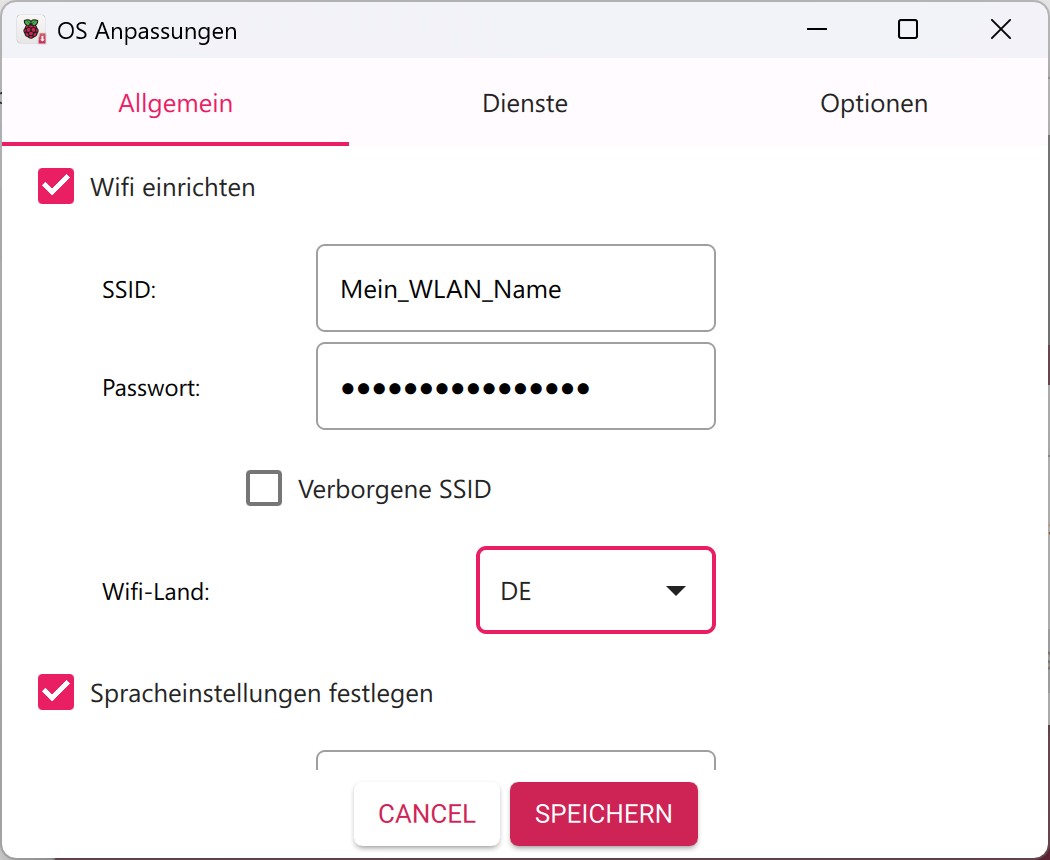
-
Then adjust your
Time ZoneandKeyboard Layout.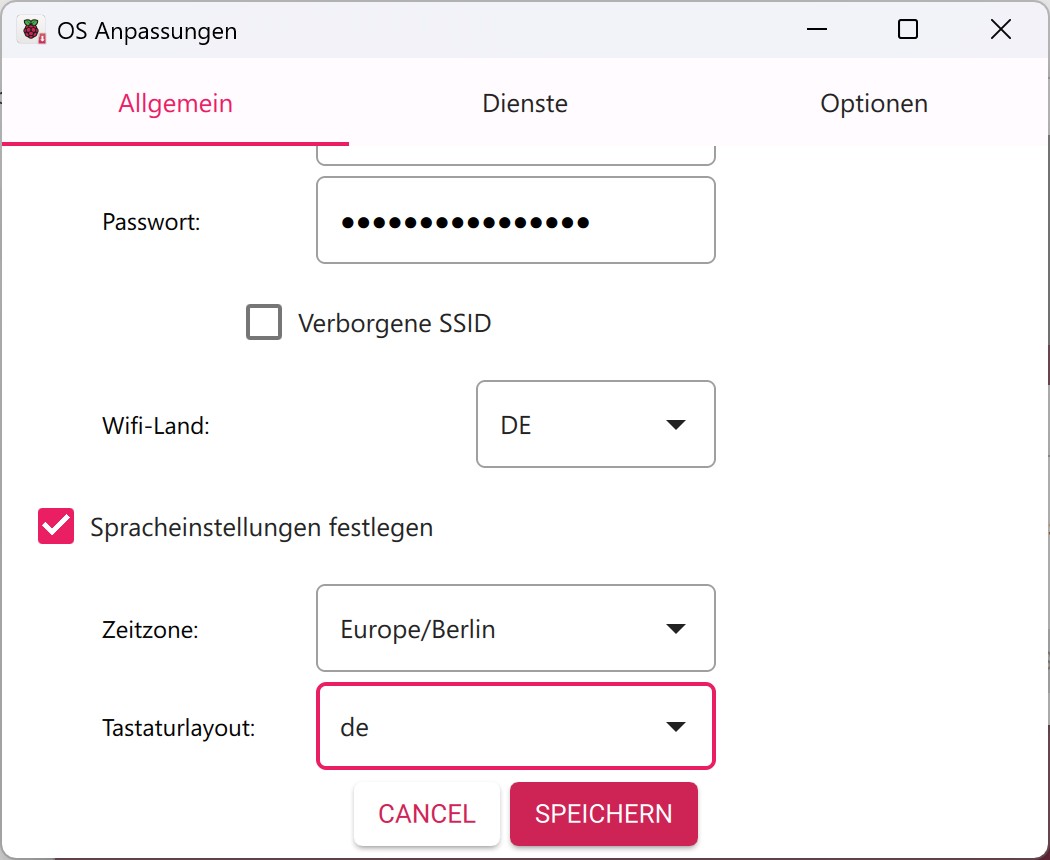
-
Under
General, it should look like this at the end, filled in with your own data, of course. But don’t clickSaveyet!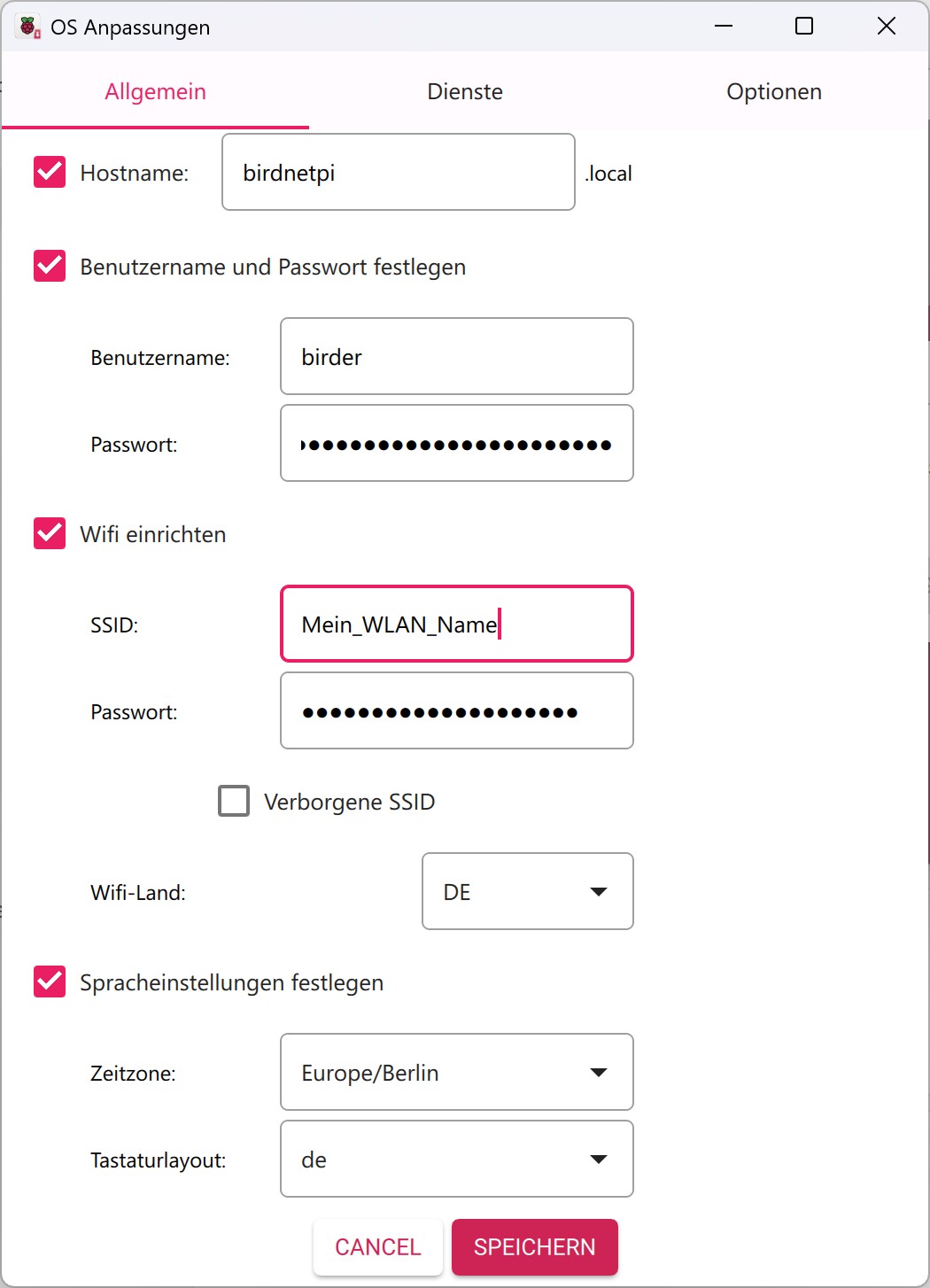
-
Switch to the
Servicessection.
-
Enable SSH and select
Use password for authentication. This allows you to conveniently set up your BirdNET Pi from your computer without having to connect a screen or keyboard to your Raspberry Pi.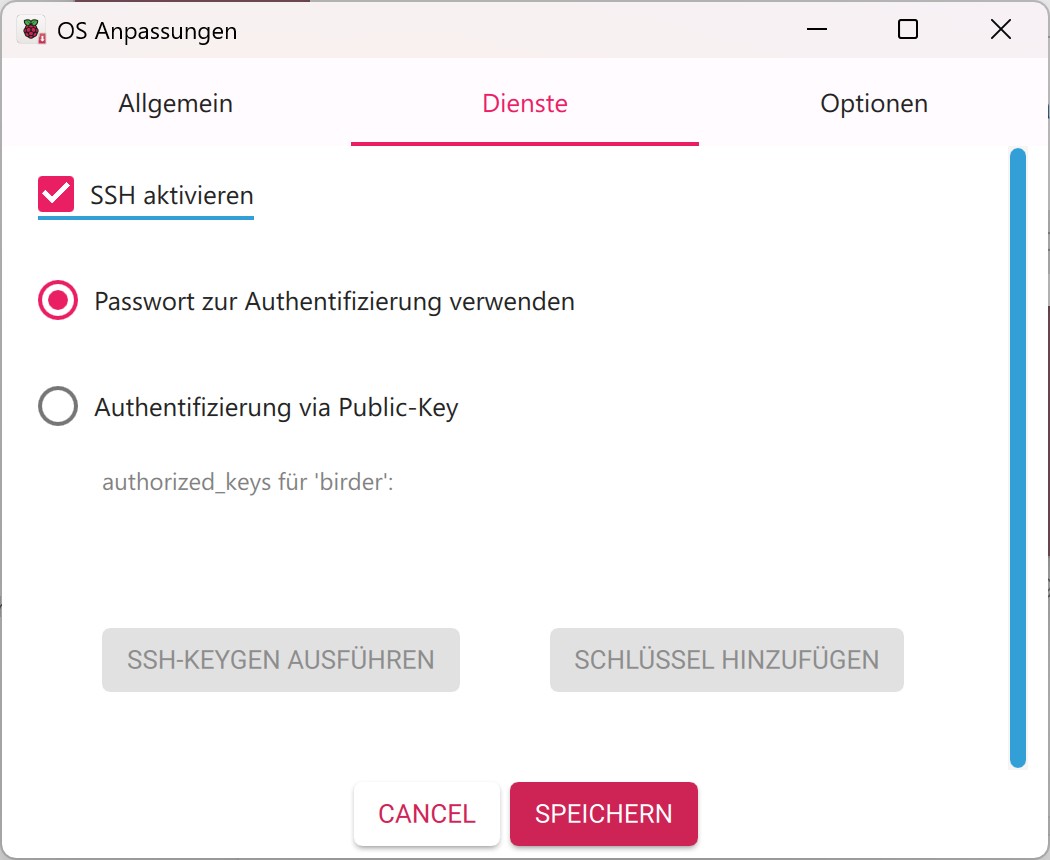
-
That’s it, you’re done! Now you can click
Save. -
Click
Yes.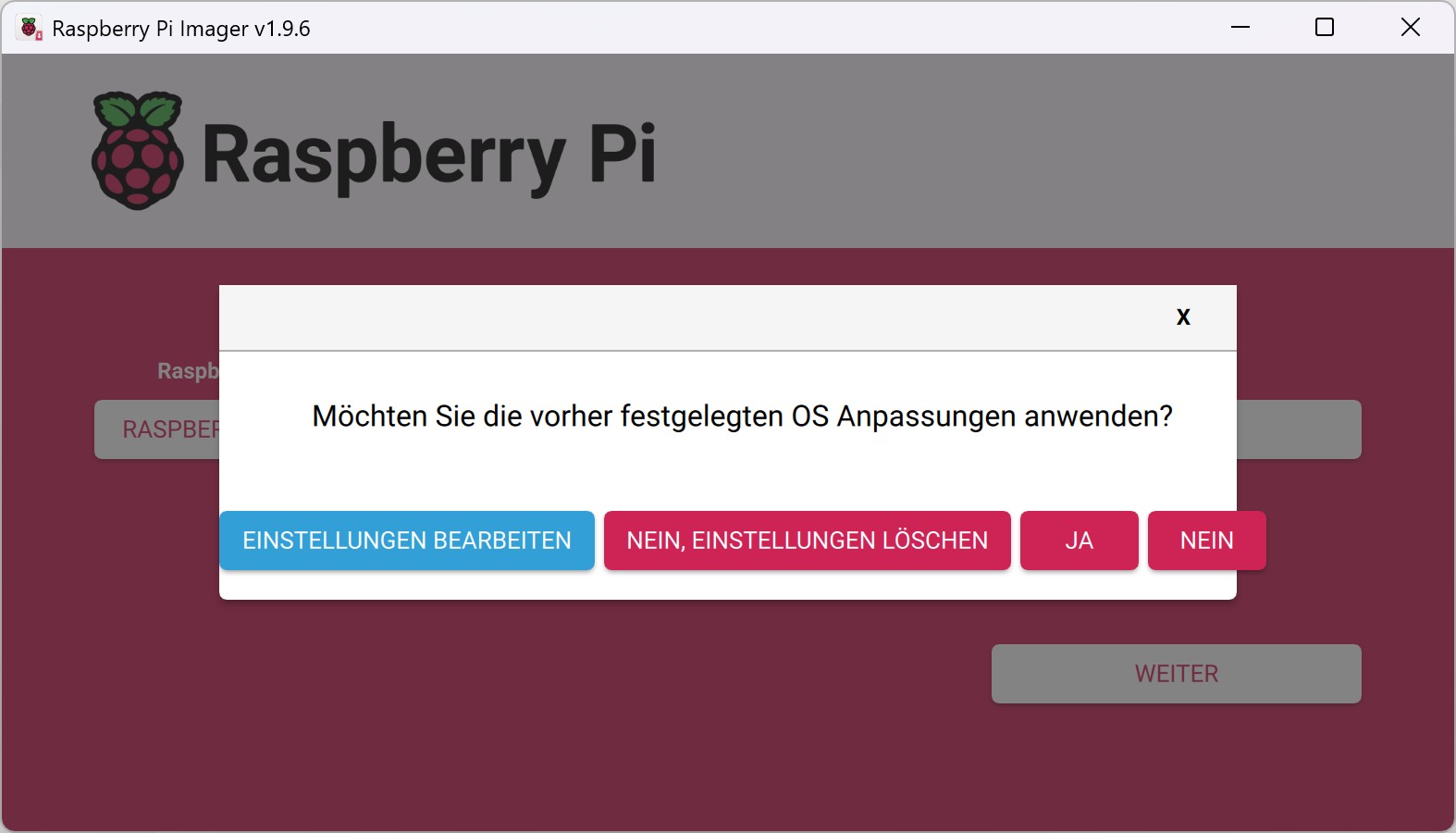
-
Click
Yesagain. All data will now be deleted from your SD card and Raspberry Pi OS will be installed. This may take a few minutes.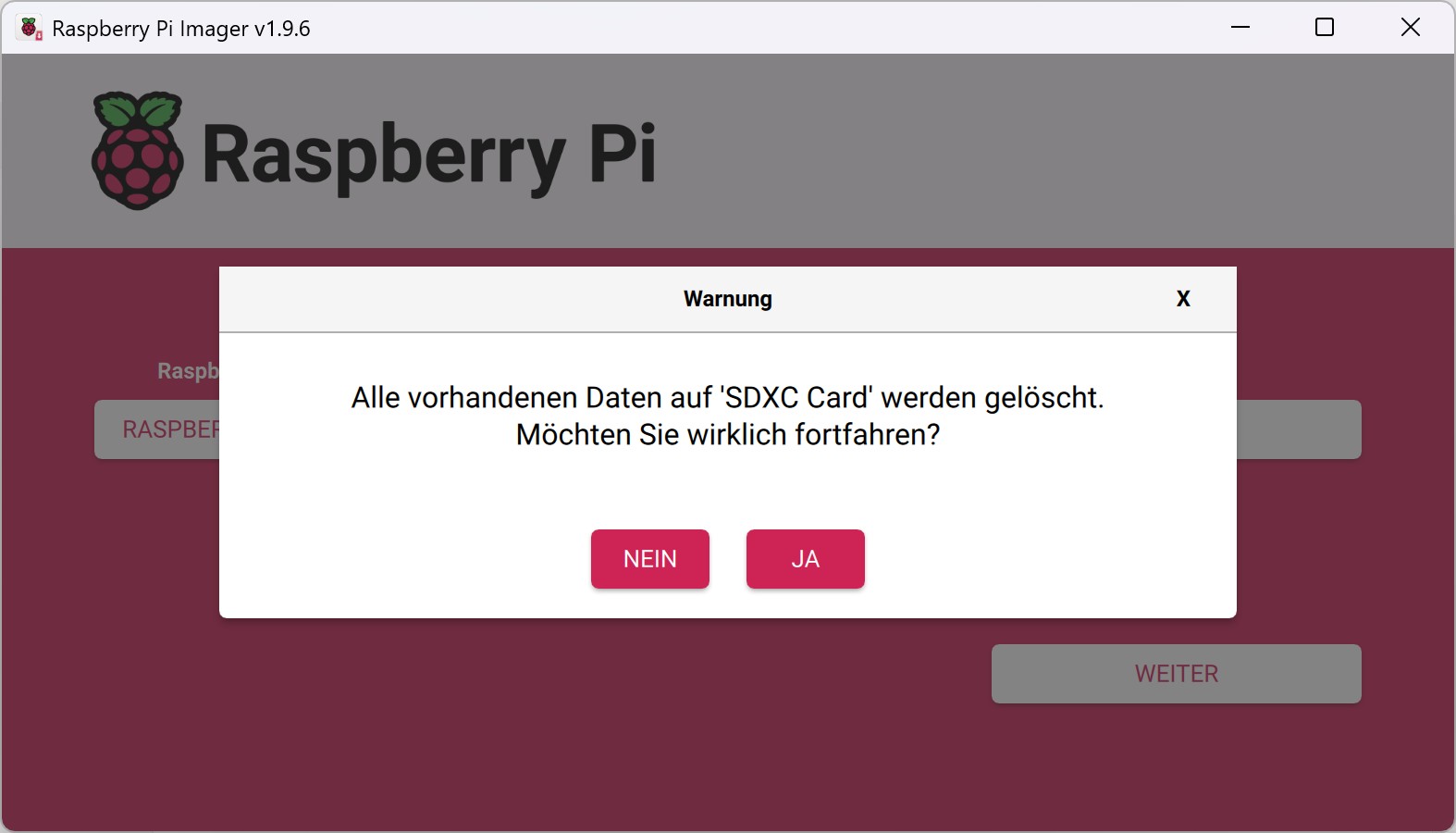
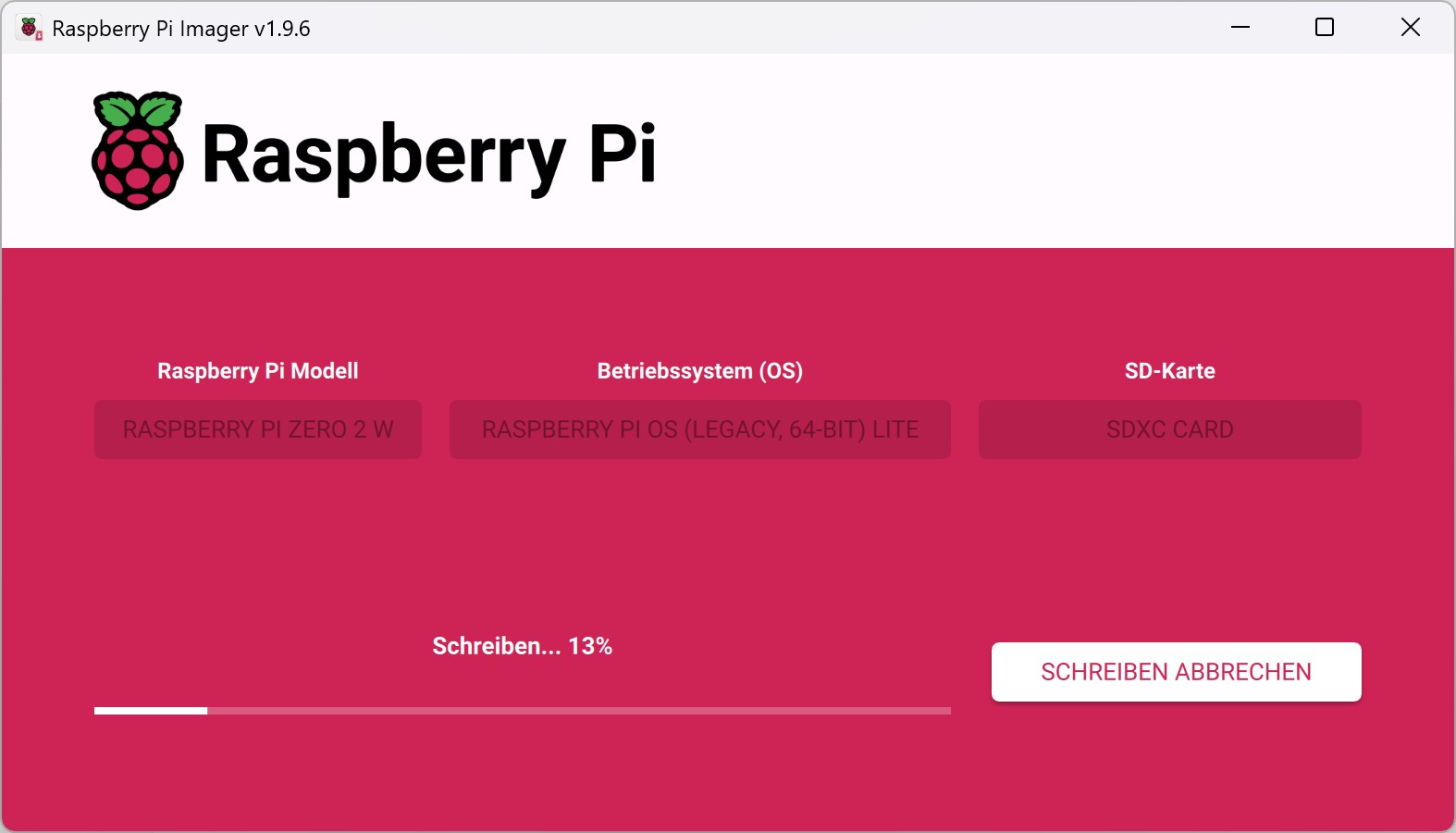
-
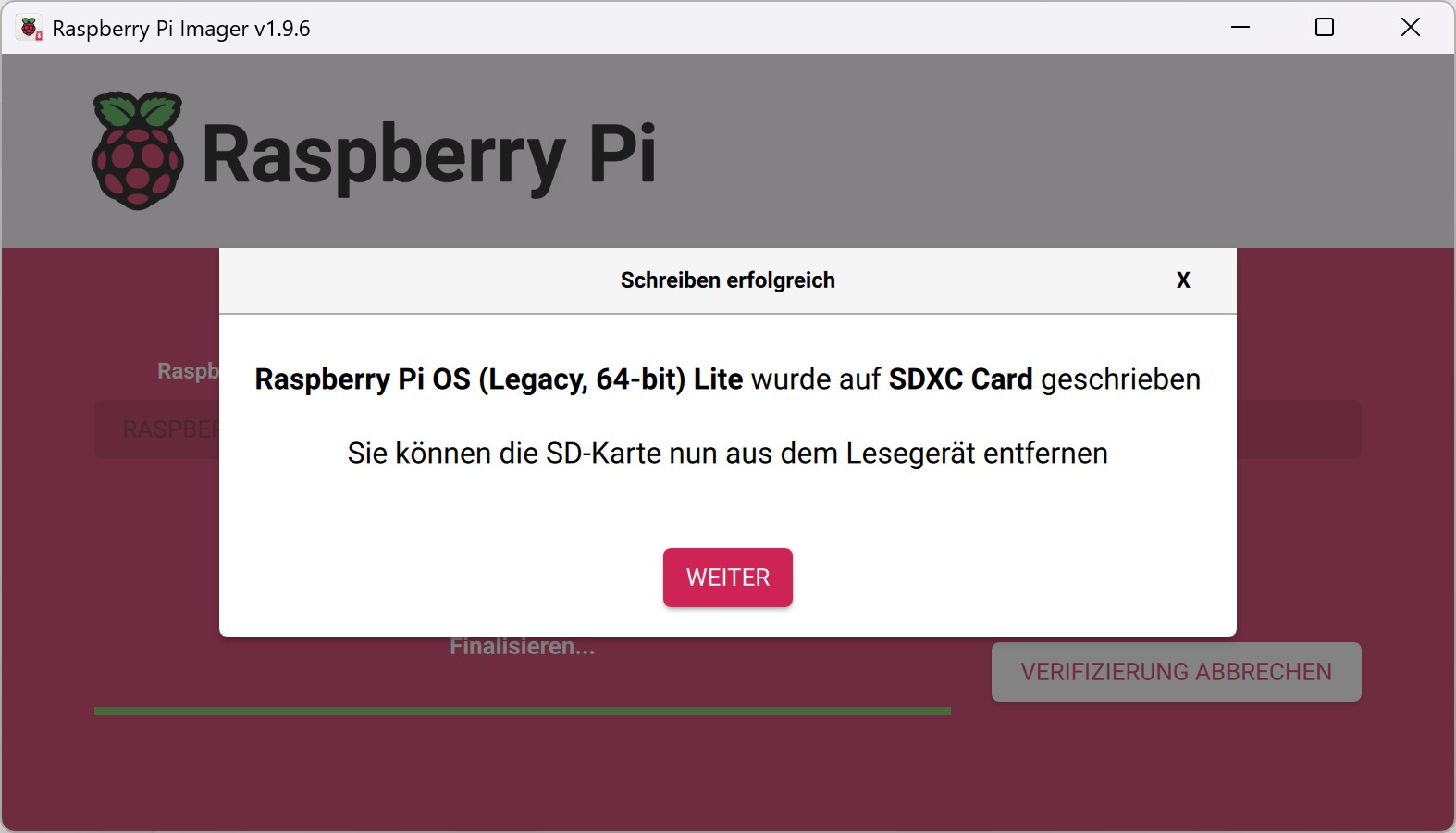
When the SD card is ready, a message will appear stating that the SD card can be removed from the computer.