
Set up a hotspot (Optional)
When should I do this?
Section titled “When should I do this?”If your BirdNET Pi is only going to be set up within range of your Wi-Fi, you can skip the following steps. In this section, we will configure settings so that if your Birdnet Pi is outside your Wi-Fi range, it will function as a hotspot and transmit its own Wi-Fi signal (which does not have internet access). This allows you to connect to the Birdnet Pi via Wi-Fi with your cell phone, for example, and access the Birdnet Pi’s data. Here, you can also add additional Wi-Fi connections or change Wi-Fi data already entered in the Raspberry Pi OS setup.
Instructions
Section titled “Instructions”- Connect via SSH
- Now we will edit the Wi-Fi and hotspot settings. To do this, we first need to open the Network Manager:
sudo nmtui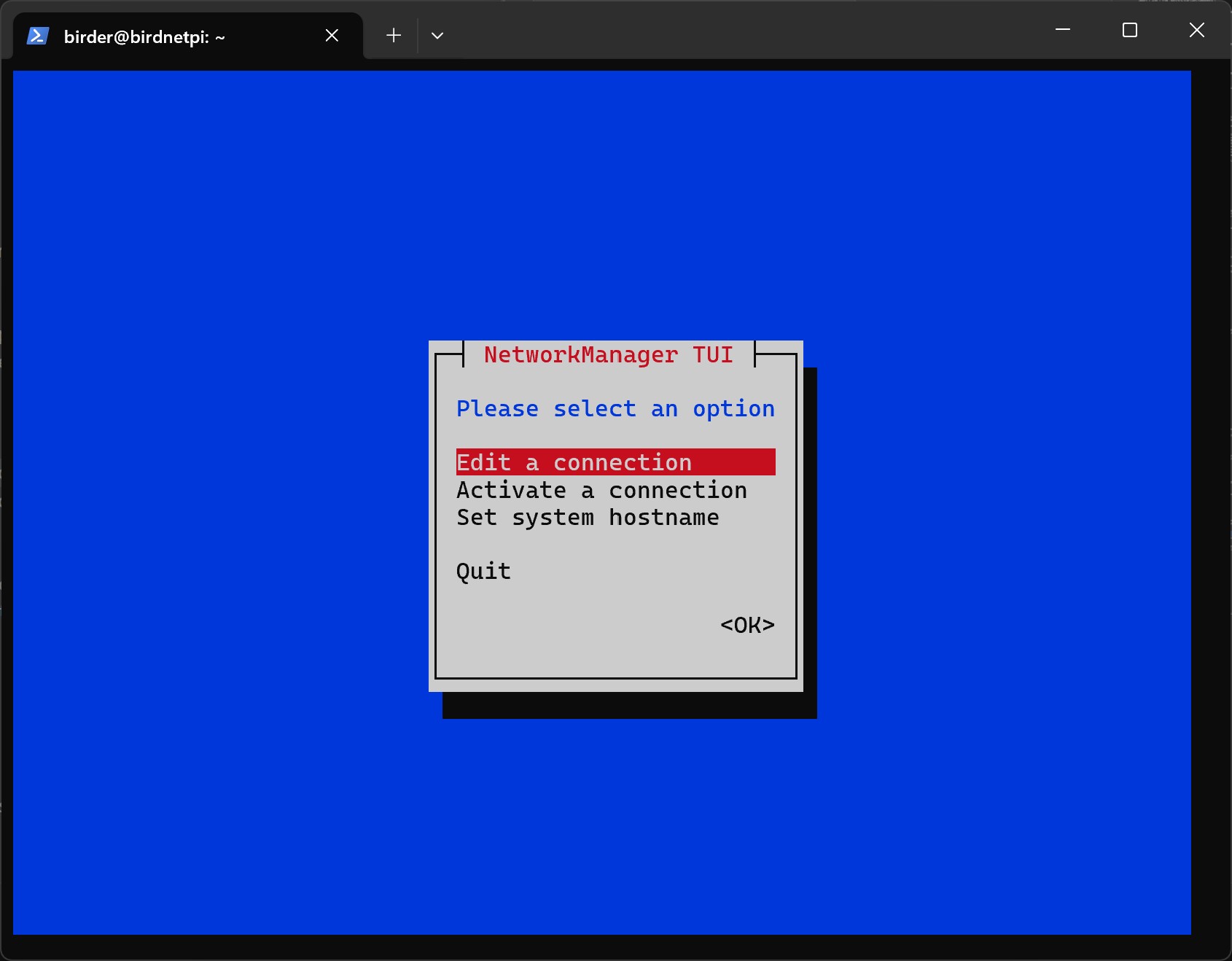
-
In Network Manager, you can move the selected item using the
arrow then keys arrow keys arrow then keys arrow keys and confirm withEnter Enter Enter Enter . -
Select
Edit a connection.
- Select
Add.
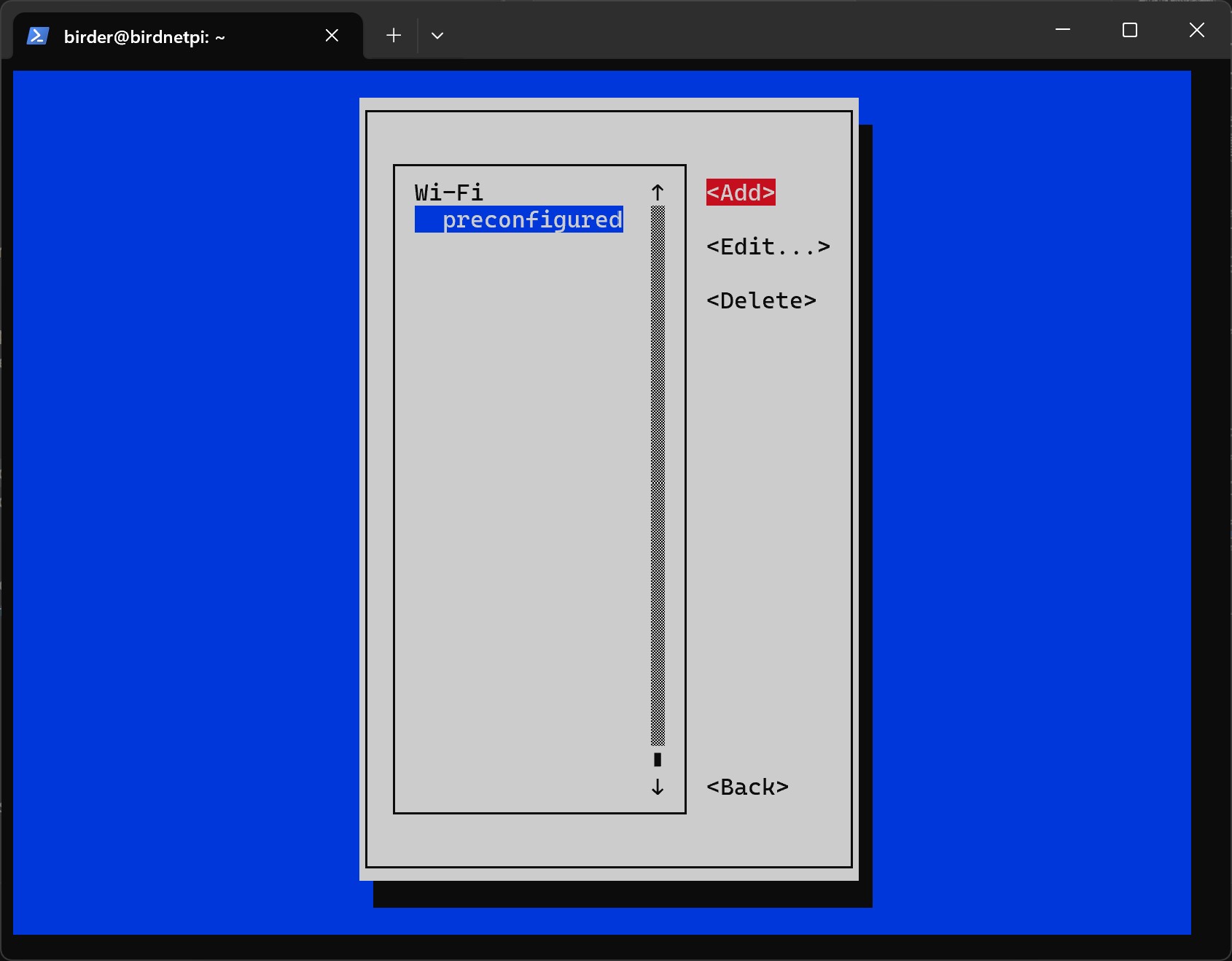
- Select
Wi-Fias the connection type.
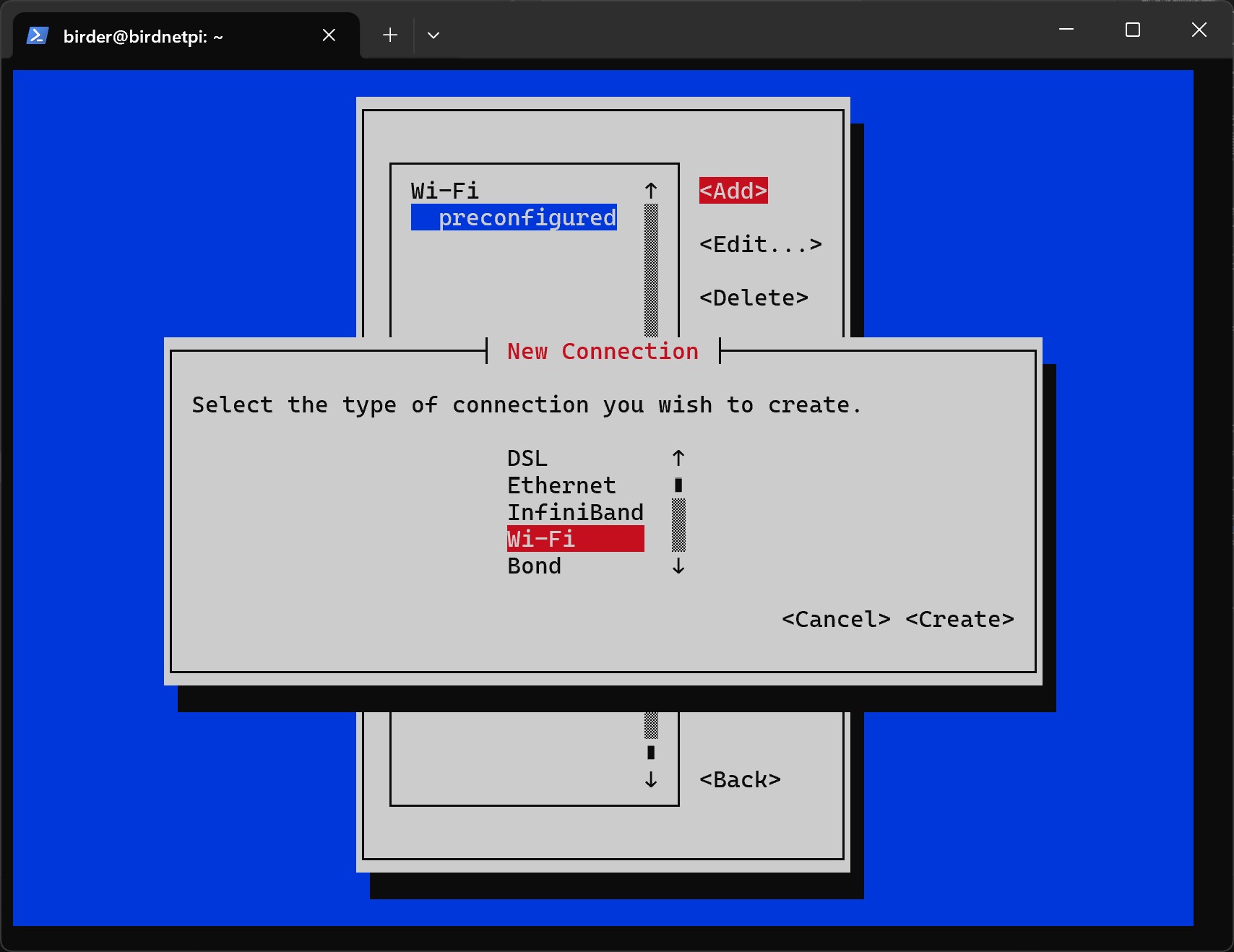
- Select
Create.
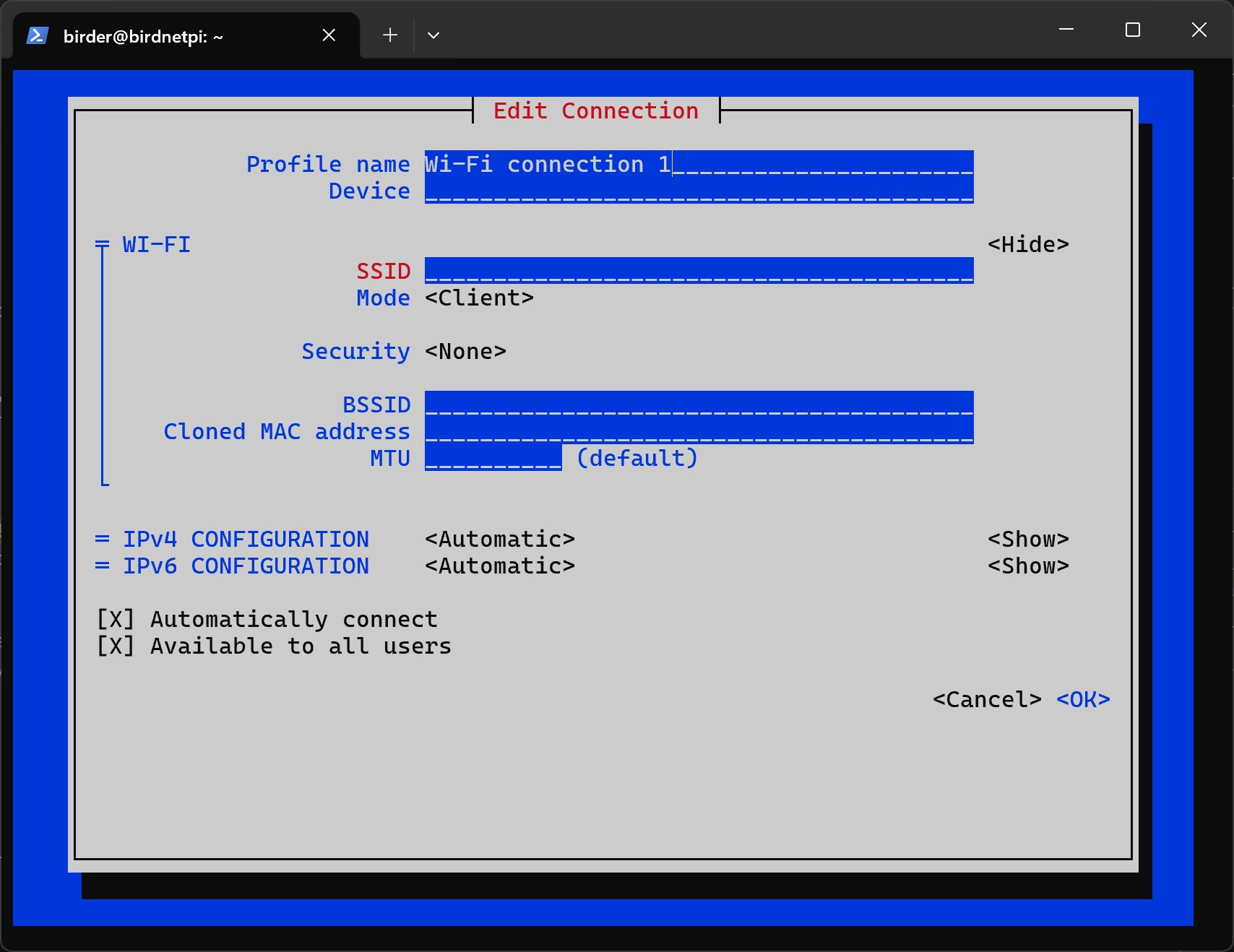
- Now you need to add your network data.
Profile Nameis for identification purposes only; you can enter any name you like here. However, make sure to replace Hotspot with your chosen name in the following commands.Device(check wlan0 if necessary)SSIDis the name of the Wi-Fi network that is created. You can choose this freely, but make sure to remember it!
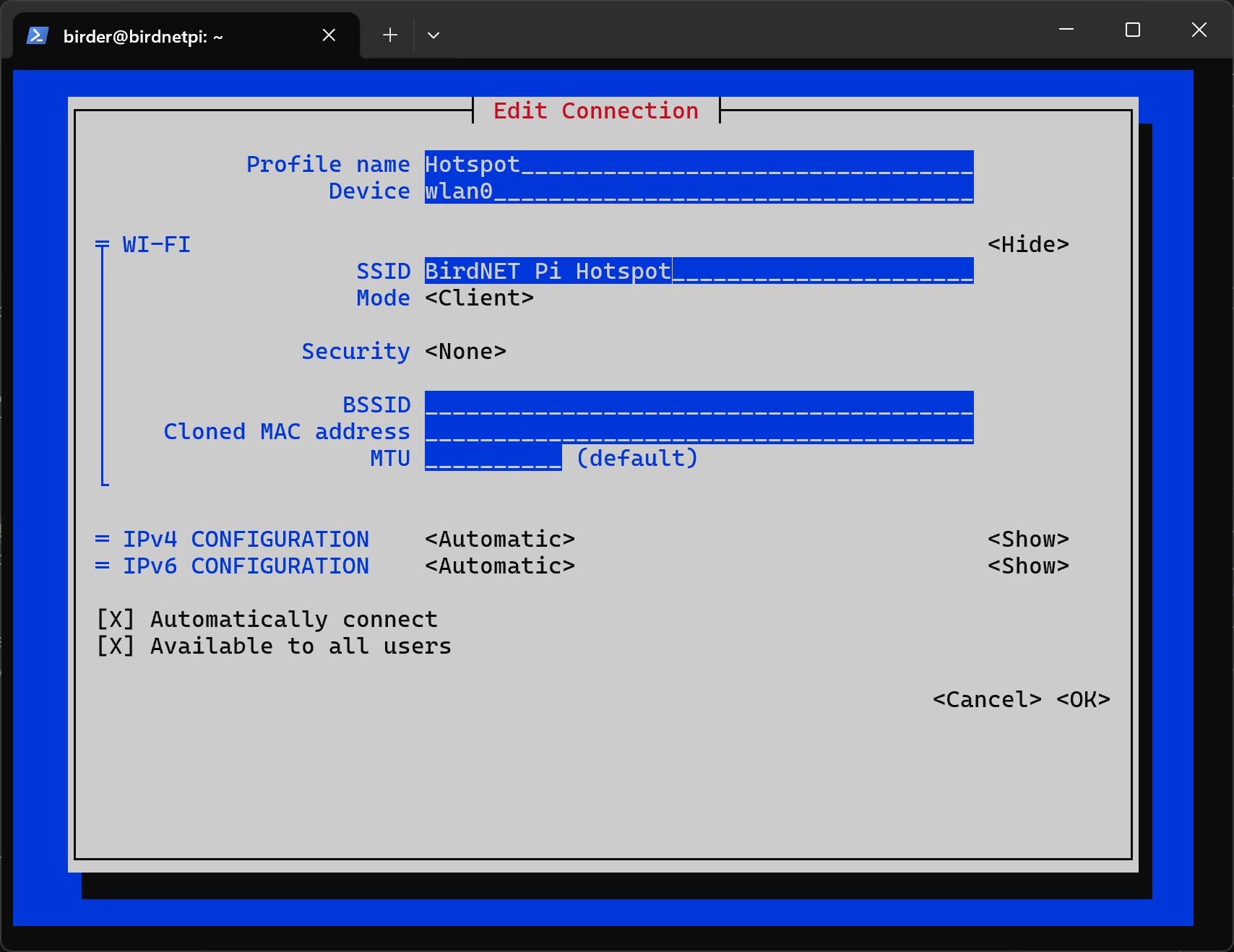
- Select
Access PointforMode.
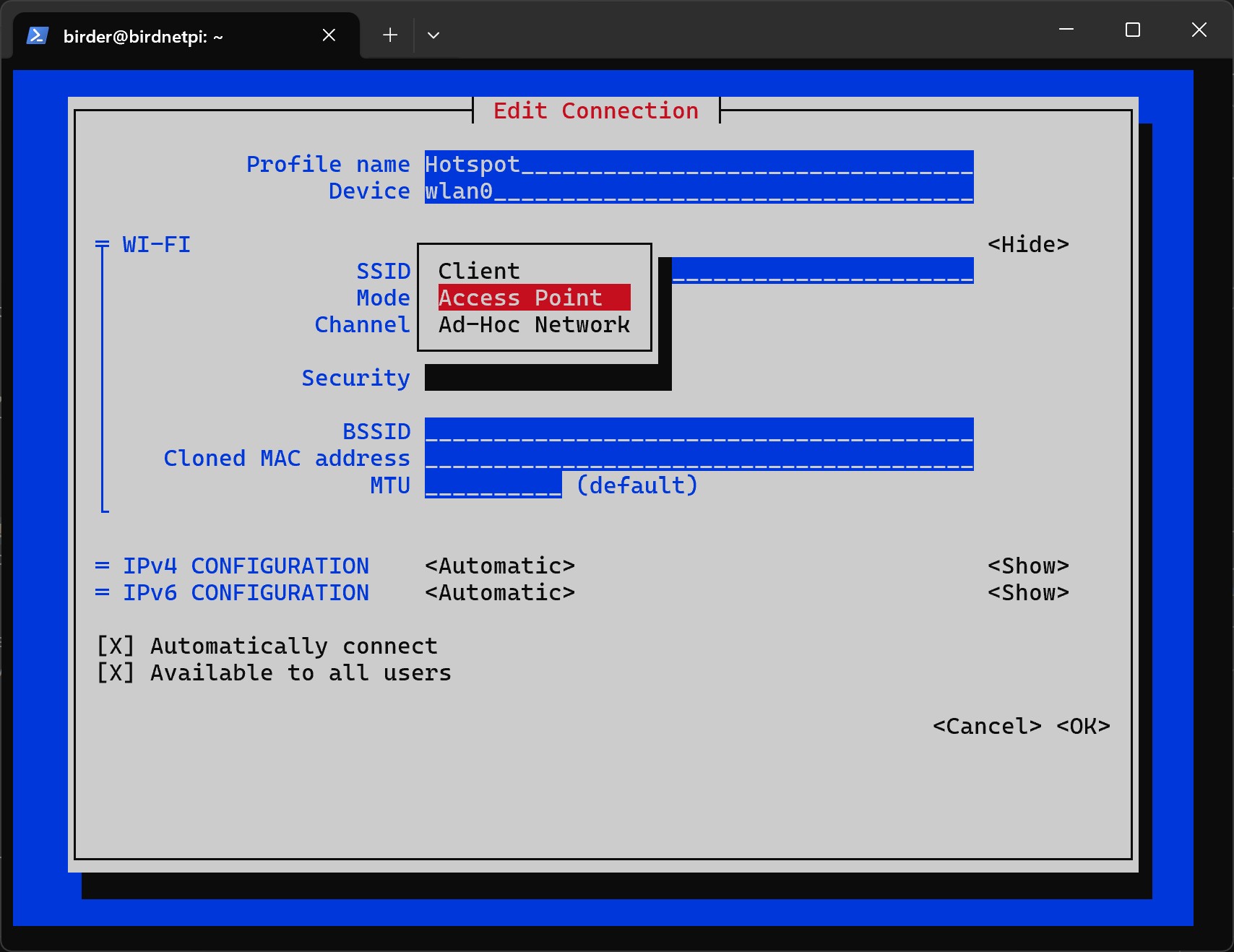
- Select
B/G (2.4 GHz)forChannel.
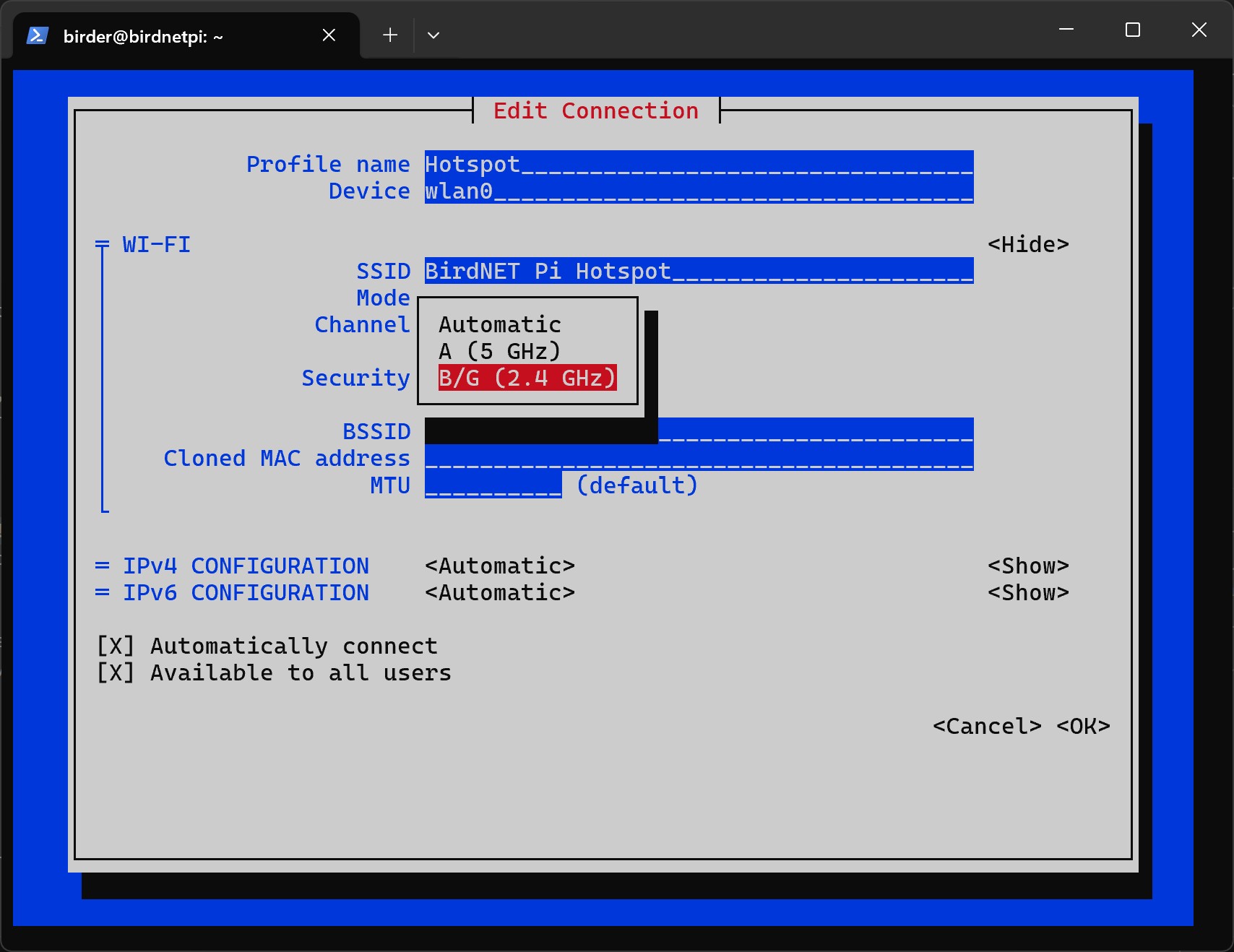
- Under
Security, selectWPA & WPA2 Personal.
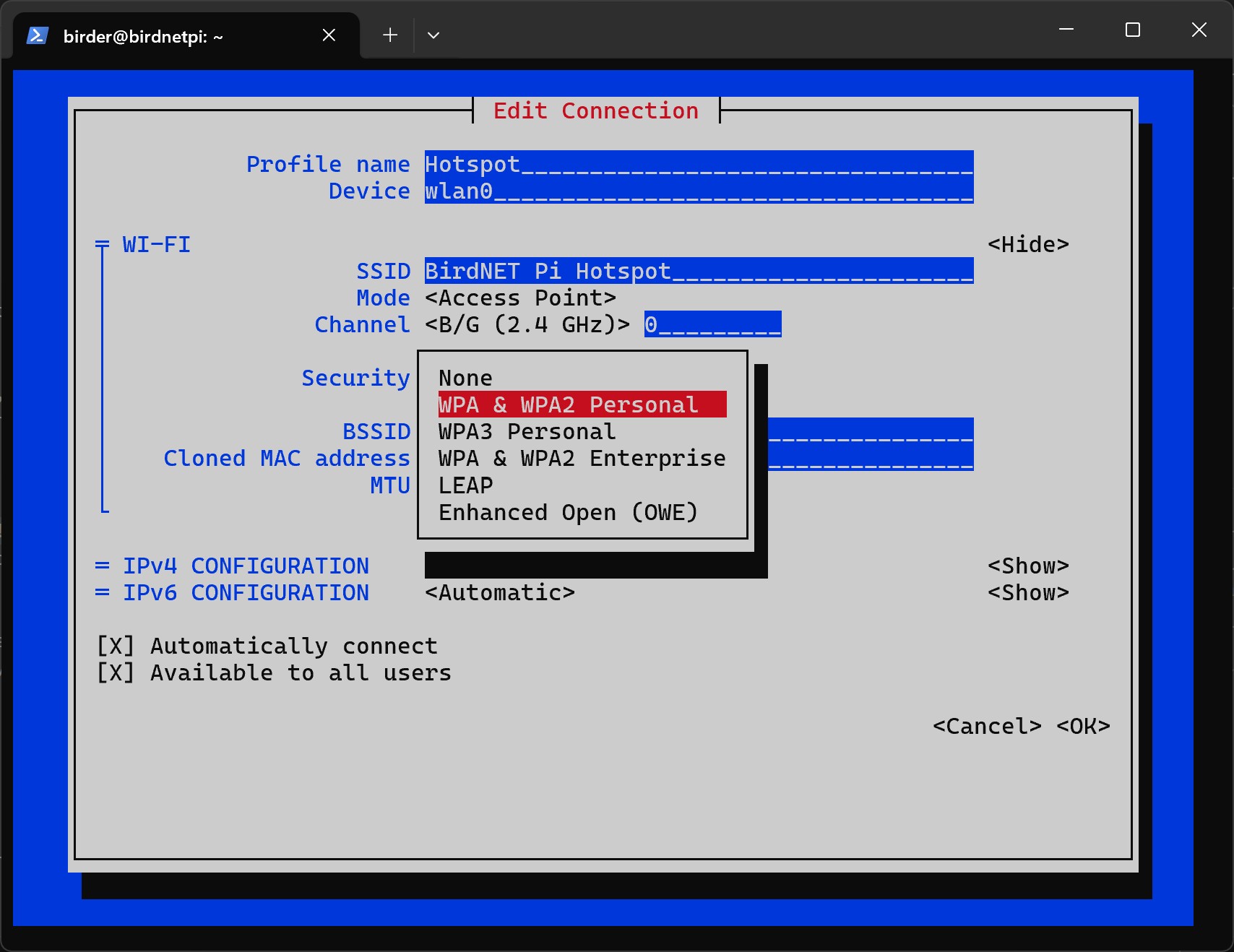
- Under “Password”, enter the password for the hotspot. Remember it!
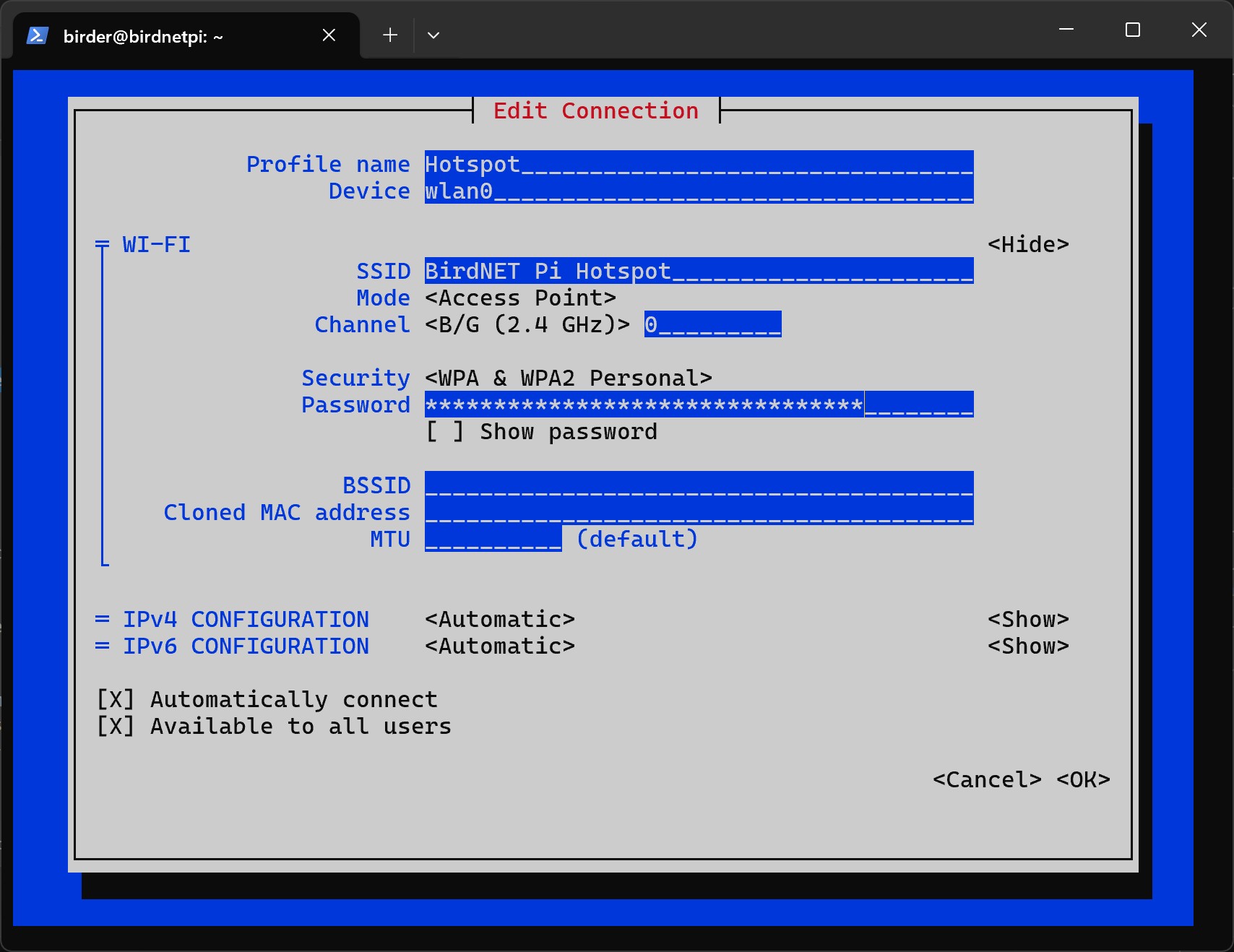
- Now we can close the program. To do this, select
OKat the bottom. - Select
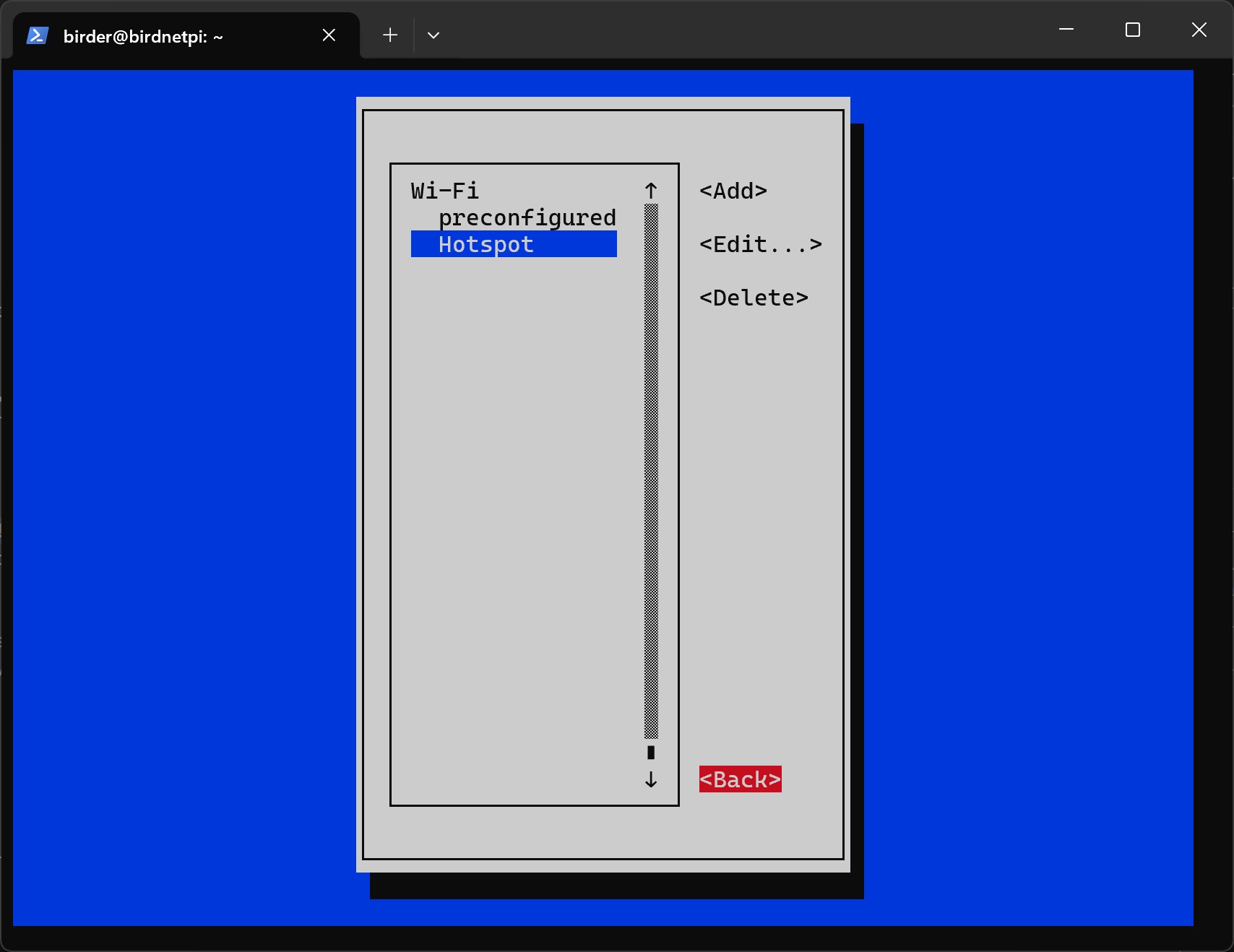
Back.
- Select
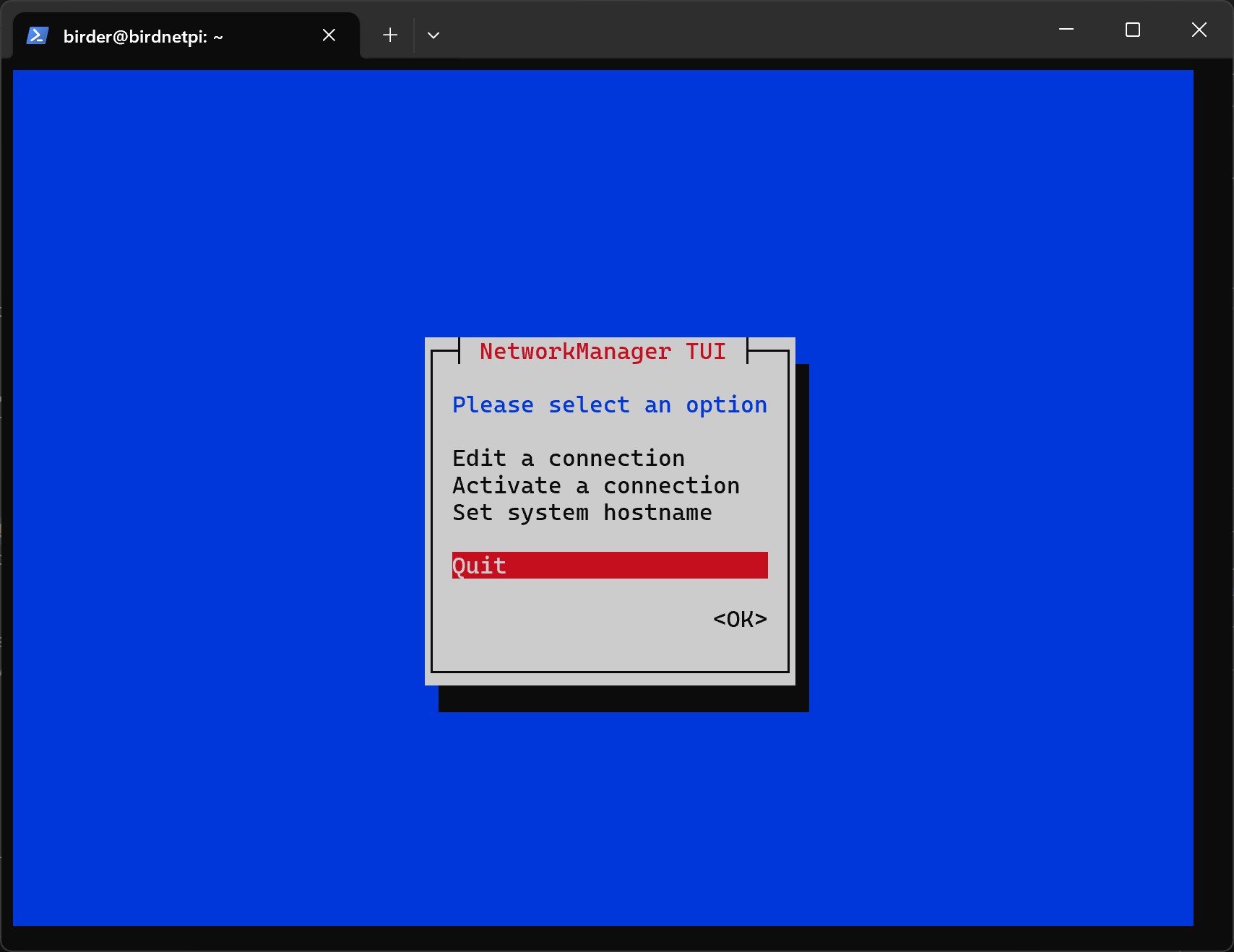
Quit.
- Now we will set the connection priorities for the Wi-Fi and hotspot connections.
This means that the Raspberry Pi will first attempt to connect to the known Wi-Fi network.
Only if no connection is possible will it automatically create its own hotspot so that a
connection to the device can still be established.
First, we need to navigate to the correct folder using the
cdcommand.
cd /etc/NetworkManager/system-connectionsbirder@birdnetpi:~ $ cd /etc/NetworkManager/system-connectionsbirder@birdnetpi:/etc/NetworkManager/system-connections $- Let’s now open the file for the hotspot connection.
sudo nano Hotspot.nmconnection GNU nano 7.2 Hotspot.nmconnection [connection]id=Hotspotuuid=4cc09b40-6ef0-4caf-bbf6-600fe2121122type=wifiinterface-name=wlan0
[wifi]band=bgmode=apssid=BirdNET Pi Hotspot
[wifi-security]key-mgmt=wpa-pskpsk=Here is your password for the hotspot
[ipv4]method=auto
[ipv6]addr-gen-mode=defaultmethod=auto
[proxy]
[ Read 23 lines ]
^G Help ^O Write Out ^W Where Is ^K Cut ^T Execute ^C Location^X Exit ^R Read File ^\ Replace ^U Paste ^J Justify ^/ Go To Line- Insert the following code snippet into the first part of the file.
The entry
autoconnect=trueactivates automatic connection establishment. The valueautoconnect-priority=0sets the priority of the network. The higher the number, the more preferred this network is when connecting automatically.
autoconnect=trueautoconnect-priority=0 GNU nano 7.2 Hotspot.nmconnection * [connection]id=Hotspotuuid=4cc09b40-6ef0-4caf-bbf6-600fe2121122type=wifiinterface-name=wlan0
autoconnect=trueautoconnect-priority=0
[wifi]band=bgmode=apssid=BirdNET Pi Hotspot
[wifi-security]key-mgmt=wpa-pskpsk=Den Eltern mal den Vogel zeigen!
[ipv4]method=auto
[ipv6]addr-gen-mode=defaultmethod=auto
[proxy]
^G Help ^O Write Out ^W Where Is ^K Cut ^T Execute ^C Location^X Exit ^R Read File ^\ Replace ^U Paste ^J Justify ^/ Go To Line- Press
Control + x Ctrlx Control + x Ctrlx , theny y y y , and finallyEnter Enter Enter Enter to save the file. - Now let’s open the file for the Wi-Fi connection.
sudo nano preconfigured.nmconnection GNU nano 7.2 preconfigured.nmconnection [connection]id=preconfigureduuid=fh6c02n6-5th7-4911-9g5c-d356zh245type=wifitimestamp=27604593
[wifi]hidden=truemode=infrastructuressid=Dein_Wlan_Name
[wifi-security]key-mgmt=wpa-pskpsk=4c9ed4tg67fd672c6896d1ec9e1g885a61f4th322be
[ipv4]method=auto
[ipv6]addr-gen-mode=defaultmethod=auto
[proxy]
[ Read 23 lines ]
^G Help ^O Write Out ^W Where Is ^K Cut ^T Execute ^C Location^X Exit ^R Read File ^\ Replace ^U Paste ^J Justify ^/ Go To Line- Insert the following code snippet into the first part of the file.
autoconnect=trueautoconnect-priority=10 GNU nano 7.2 preconfigured.nmconnection [connection]id=preconfigureduuid=fh6c02n6-j705-4911-9g5c-d36127245type=wifitimestamp=27604593
autoconnect=trueautoconnect-priority=10
[wifi]hidden=truemode=infrastructuressid=Dein_Wlan_Name
[wifi-security]key-mgmt=wpa-pskpsk=4c9efd672c68947g4884e4f62744756d1ec9e1g885a61f322be
[ipv4]method=auto
[ipv6]addr-gen-mode=defaultmethod=auto
[proxy]
[ Wrote 27 lines ]
^G Help ^O Write Out ^W Where Is ^K Cut ^T Execute ^C Location^X Exit ^R Read File ^\ Replace ^U Paste ^J Justify ^/ Go To Line- Press
Control + x Ctrlx Control + x Ctrlx , theny y y y , and finallyEnter Enter Enter Enter to save the file. - Now restart the Raspberry Pi.
sudo reboot